
Computer-use & browser
NomiFun gives the agent two optional system-level capabilities. Computer-use lets it screenshot, synthesize mouse/keyboard input, and enumerate/focus windows — seeing and operating your whole desktop. Browser-use drives Chromium through a homegrown, in-process Rust CDP engine to navigate, read, click, and fill forms. Both are exposed as native tools straight to the model, so they’re faster, cheaper on tokens, and finer-grained to govern than bolt-on alternatives.
Both are high-privilege capabilities. In the desktop app (nomifun-desktop) they compile in and default to on; you can switch either off in system settings at any time. The headless web/server build (nomifun-web) promises neither desktop control nor a hosted browser.
Find them in system settings: Computer Use (/settings/computer-use) and Browser Use (/settings/browser-use).
Steps
-
Open computer-use settings. Go to
/settings/computer-use. Desktop builds default to on; flipping the switch off persists to your preferences, and later sessions won’t get the capability. Under the hood it’s a single tool with anactionparameter — screenshot, move/click, type, scroll, drag, list windows, focus window, and so on (~21 actions). Screenshots and UI recognition ride the platform’s native accessibility stack: AX + Vision OCR on macOS, UIA + Media.Ocr on Windows, AT-SPI2 on Linux.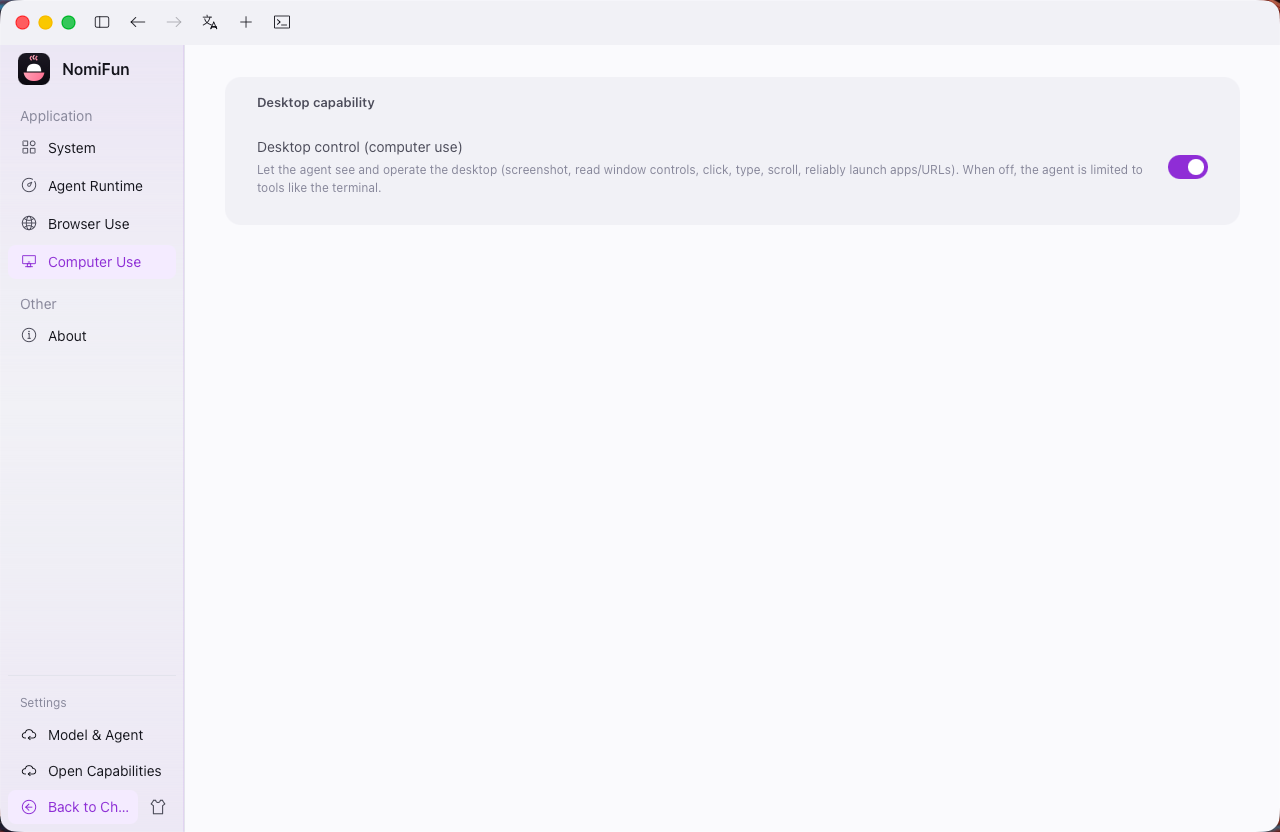
-
(macOS only) Grant system permissions. First use of computer-use needs you to authorize the host app under System Settings → Privacy & Security:
- Accessibility — required to synthesize mouse/keyboard input and read the accessibility tree.
- Screen Recording — required for screenshots (check this first if a screenshot comes back black or fails).
When a permission is missing the tool result tells you exactly what to grant — do it, then retry.
-
Open browser settings. Go to
/settings/browser-use. New installs default to a visible system browser, so you can watch what the agent opens, clicks, and fills. You can switch to a NomiFun-managed browser or turn on background silent mode to hide the window. Chrome for Testing is downloaded only when the managed source is selected.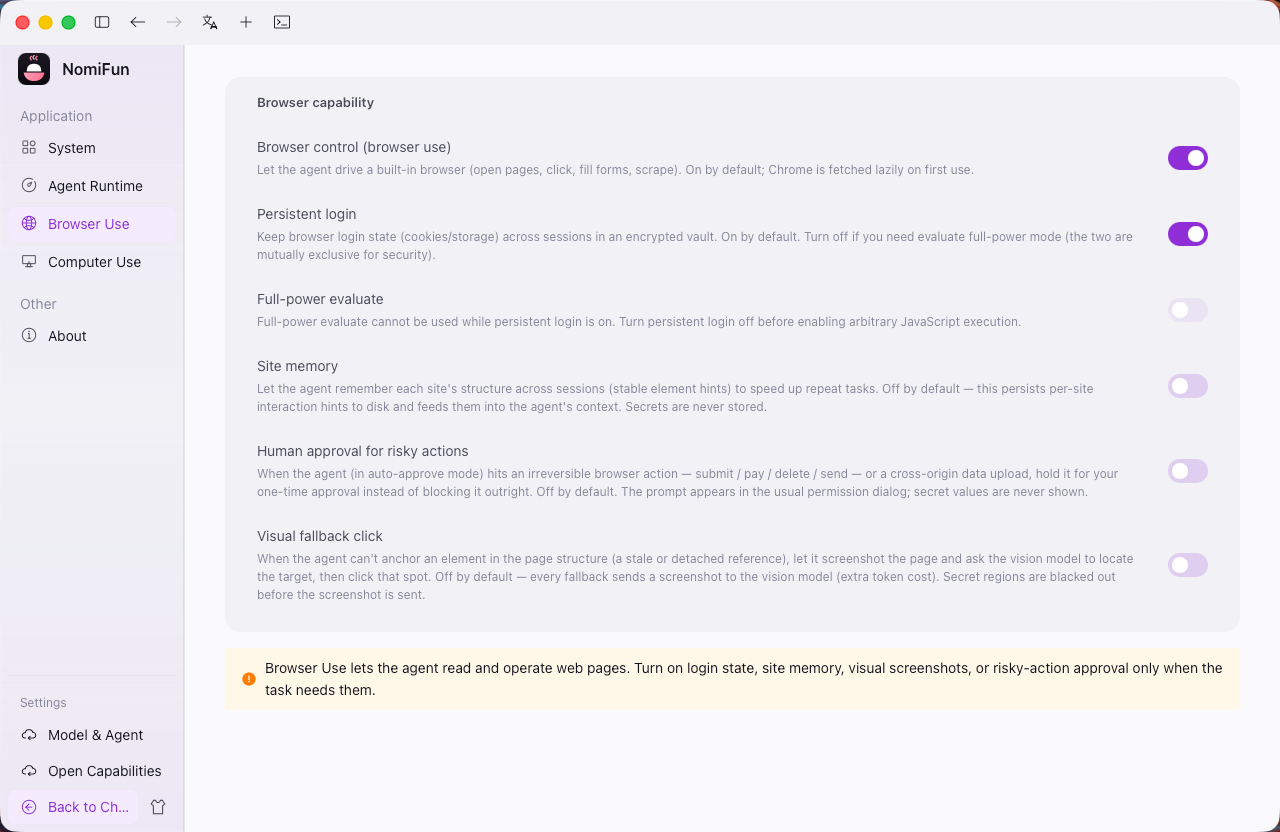
-
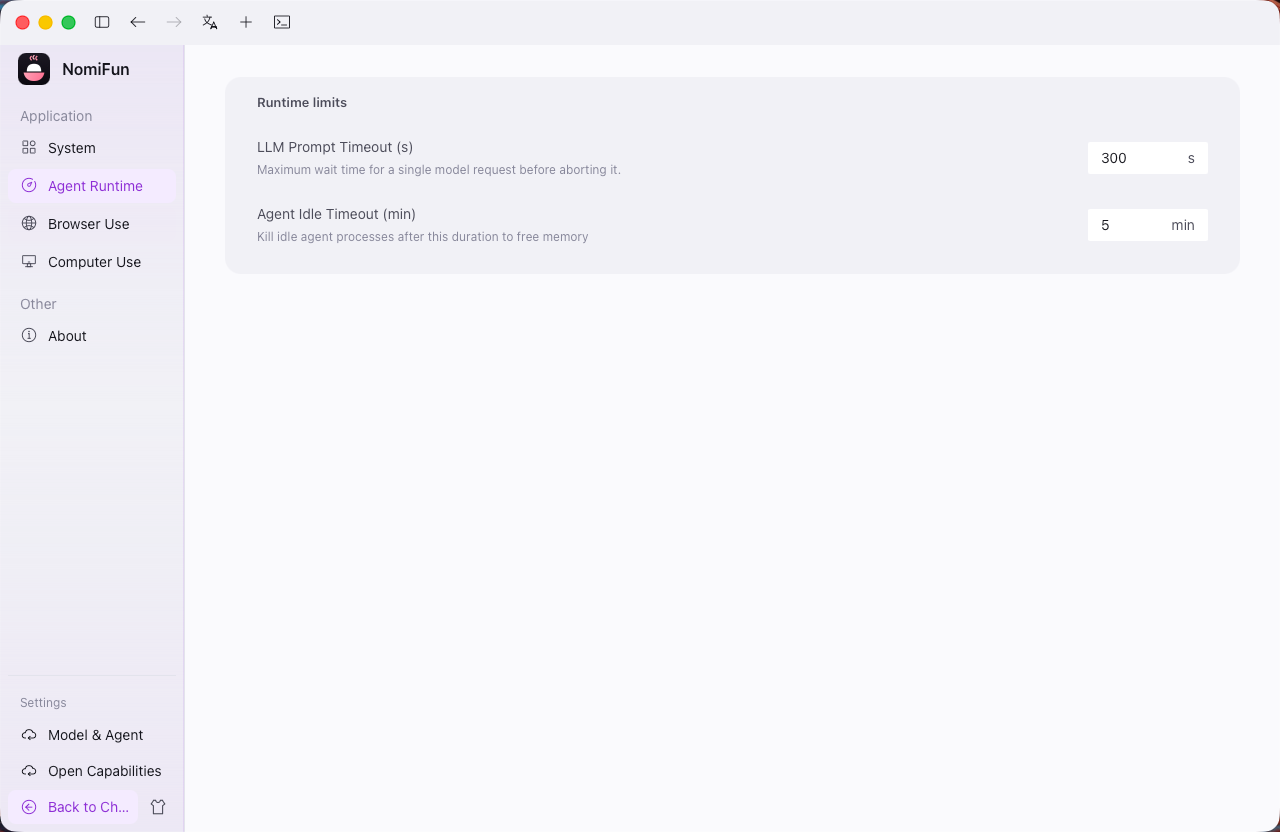
(Optional) Tune defaults per session or host. Beyond the global switches in system settings, you can toggle both capabilities for a specific session from the agent runtime settings, alongside token-governance knobs like the screenshot long-edge cap and how many recent images to keep in history.
-
Put the agent to work. Hand it tasks in plain language (“open this page and fill out the form”, “take a screenshot and tell me what’s on screen”). The recommended loop is: screenshot to observe → act → screenshot to verify.
Notes & boundaries
- System vs. managed browser: the system option uses local Chrome / Edge; the managed option uses a separate Chrome for Testing profile maintained by NomiFun.
- Login state: use Log in to my browser for sites that require authentication, then close the login window to save the state. Persistent login and unrestricted full control should not be enabled together.
- Visible vs. silent: visible is the safer default for first-time and sensitive work. Silent mode is better reserved for familiar, low-risk, repetitive workflows.
- Approvals: screenshots and page reads can normally proceed, while clicks, typing, uploads, and submissions that change external state should keep an approval step.
- Desktop availability: Computer Use depends on a real desktop and operating-system permissions; it is primarily a desktop-app capability, not a headless-server feature.
FAQ
- Screenshot comes back black or fails? On macOS it’s almost always missing Screen Recording permission. Grant it, restart the host app, and retry.
- Do I have to install Chrome or Node myself? The default uses system Chrome / Edge. If you choose the managed browser, NomiFun downloads Chrome for Testing automatically; Node, npm, and Playwright are not required.
- Can I still add community MCP browser/desktop tools? Yes. The built-in computer-use and native browser don’t block you from adding any community server in MCP settings — the tool names differ, so they don’t collide.
Related
- The session workspace — how the file tree, preview, and a session invoke these capabilities.
- MCP & skills — wire up external tools alongside the built-ins.
- System settings — themes, execution engines, updates, and other application preferences.
Full docs → GitHub