
WebUI remote
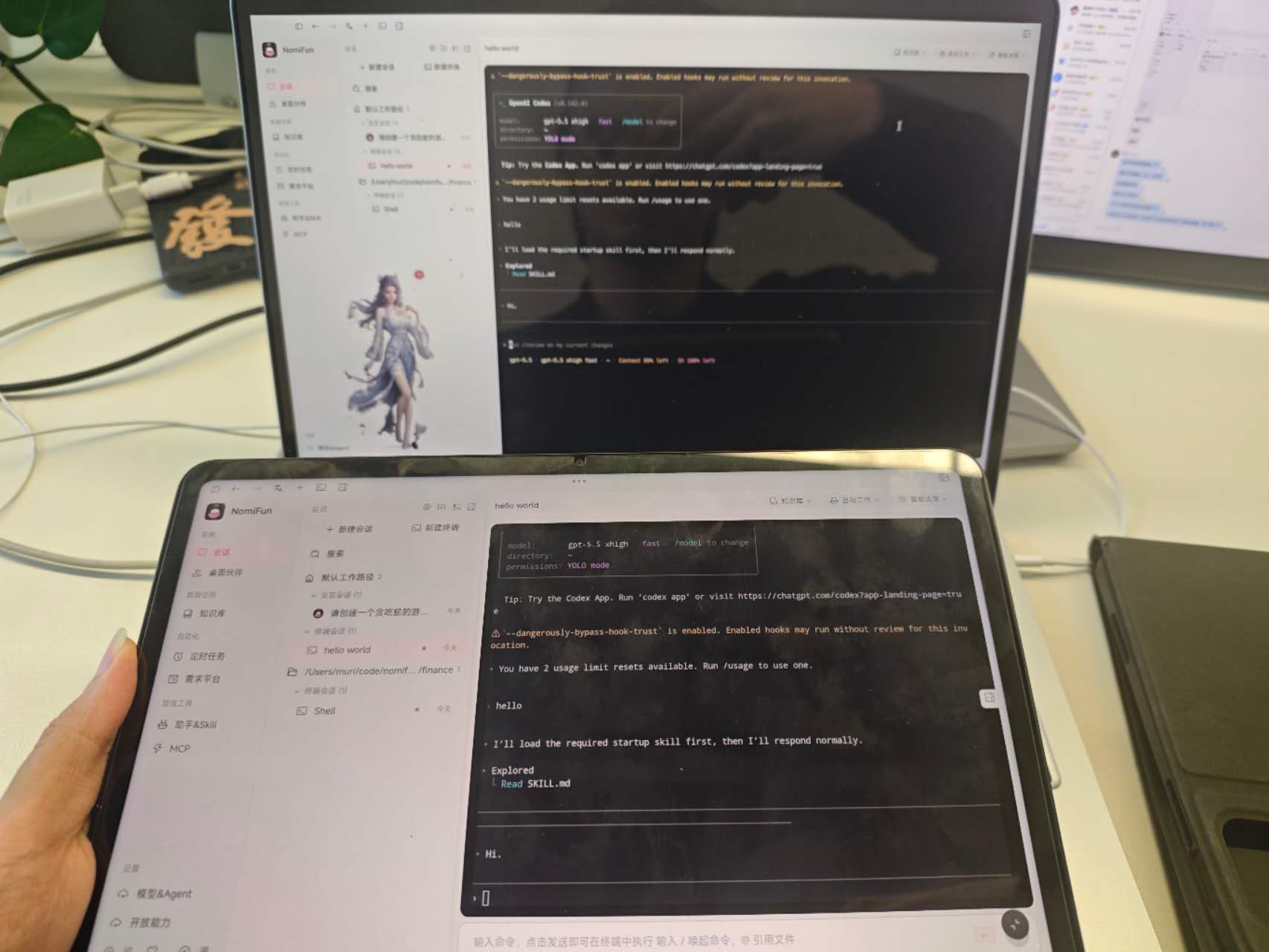
The desktop app already runs a backend on a loopback port for its own WebView — but putting an unauthenticated backend straight onto the LAN hands full shell, file, and agent access to every device on the network. WebUI remote access exists for exactly this: one click binds an extra login-protected (password + QR) listener on a stable LAN port, letting you use Nomi from a phone, tablet, or another computer’s browser without giving up local-mode convenience. The phone / tablet experience is the same UI, same workflow as desktop.
It is per-instance — it lives inside the desktop app you’re already running — and is distinct from a dedicated nomifun-web deployment. Use this when you already have a desktop install and just want to reach it from another device on the same network; use the dedicated server for a long-running headless deployment (see the cross-links at the end).
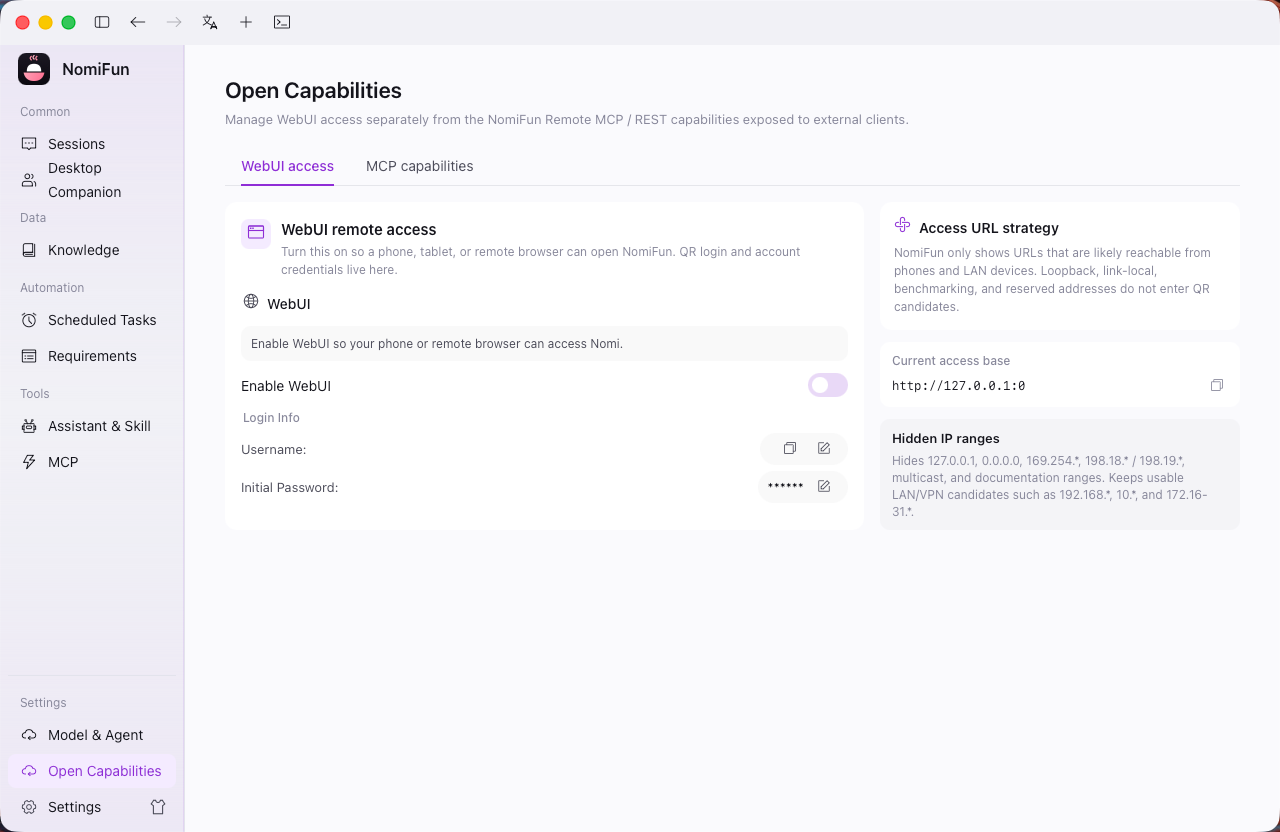
Entry point: the Open Capabilities sidebar item, route
/open-capabilities, then the “WebUI remote access” panel. The legacy/settings/webuiroute redirects here.
It is not a social platform
This is a point-to-point LAN channel: your phone connects directly to the desktop backend on your own computer — no third-party server, no account upload, no “friends” or “follows.” It works across:
- the same LAN (home / office Wi-Fi),
- a corporate office network,
- trusted networks reachable over VPN / Tailscale.
Architecture: two listeners, one backend
The desktop process serves one backend (routes built once) on two sockets:
- A permanent loopback listener (random port) — the desktop’s own WebView, trusted by the per-boot local-trust secret, always on; toggling remote access never disrupts it.
- An on-demand LAN listener (
0.0.0.0:25808) — bound only while remote access is on, torn down when off. Remote browsers hit this and must log in. Trust is by the secret (held only by the desktop WebView), not “came from loopback,” so other OS accounts and same-host reverse proxies are not auto-trusted. It also enforces a Host/Origin allowlist (IP / localhost only, blocking DNS rebinding) and rate-limits by real peer address.
Steps
-
Enable it. In Open Capabilities (
/open-capabilities), click Enable on the WebUI panel. The backend starts an auth server inside the desktop process (default port25808; falls back to a random port if taken) and provisions an admin (default usernameadmin). The initial random password is shown in plaintext exactly once — copy it immediately. The toggle reflects the server’s real state: a silent failure (a port conflict, etc.) leaves it off rather than misleading you. -
Get the access URL. The displayed URL adapts:
http://localhost:<port>on the host,http://<your-LAN-IP>:<port>remotely (e.g.http://192.168.1.42:25808). The copy button copies the URL; clicking opens it in your external browser. On multi-NIC / VPN hosts, confirm the advertised address is the one your phone can actually reach. -
Scan to log in from a phone / tablet. While the LAN listener runs, a QR code appears in the credentials card. Scanning opens
…/qr-login?token=<one-time>in the phone’s browser; the page validates the token, sets a session, and redirects to the main UI. The token expires in 5 minutes and is single-use; the UI auto-refreshes the QR every 4 minutes so an idle panel never goes stale. The copy button beside the QR copies the full login URL (handy when scanning fails), and the refresh button mints a new token on demand. -
Get to work. Once logged in, the phone / tablet shows the exact same workspace as desktop — sessions, companions, terminal, knowledge base — with no separate client to install.
Notes and boundaries
- Plaintext HTTP, trusted networks only. The server listens over plaintext HTTP — use it only on a trusted local network (home Wi-Fi / office network / VPN / Tailscale). To expose it beyond that, deploy
nomifun-webbehind a TLS reverse proxy rather than exposing25808to the public internet. - Admin equals local power. The admin has the same capabilities as the local desktop user (shell / files / agent execution) — treat the password and QR token accordingly, and don’t post screenshots of the QR.
- One-time token boundary. A QR token is atomically consumed on scan and cannot be reused, so a leaked used token is self-limiting; but a URL leaked before it’s scanned still grants a login.
- Changing the password logs everyone out. Changing the password (in-app or via reset) invalidates all existing sessions — the JWT signing key rotates atomically with the password.
- QR login always signs in the primary admin. Regardless of how many users exist, scanning logs you in as the configured WebUI admin; it’s a per-instance “skip the password form” shortcut, not a multi-user feature.
FAQ
The toggle snaps back to off. Another process is bound to 25808. Change the port from the UI if you can, otherwise stop whatever is holding it.
The QR shows but my phone can’t connect. Check the LAN IP in the access URL — with multiple interfaces (Wi-Fi + Ethernet / VPN), the auto-detected address may not be the one your phone can reach. Confirm phone and computer are on the same network / subnet, and that you allowed Nomi at the firewall prompt on first bind.
Scanning shows “Login failed.” The token expired (5-minute TTL) or was already consumed. Tap the refresh button beside the QR to mint a new one.
I forgot the admin password. Use the reset button next to the masked password to generate a new random one — also shown only once.
Related
Full docs → GitHub