
The session workspace
The session workspace is where you and a companion actually get work done. Every session has its own working directory, and the page brings the message stream, file tree, preview panel, and a terminal mounted to that directory together in one place — pick an agent and model, mount a knowledge base when you need one, hand work off to AutoWork when you want, all without leaving this single view.
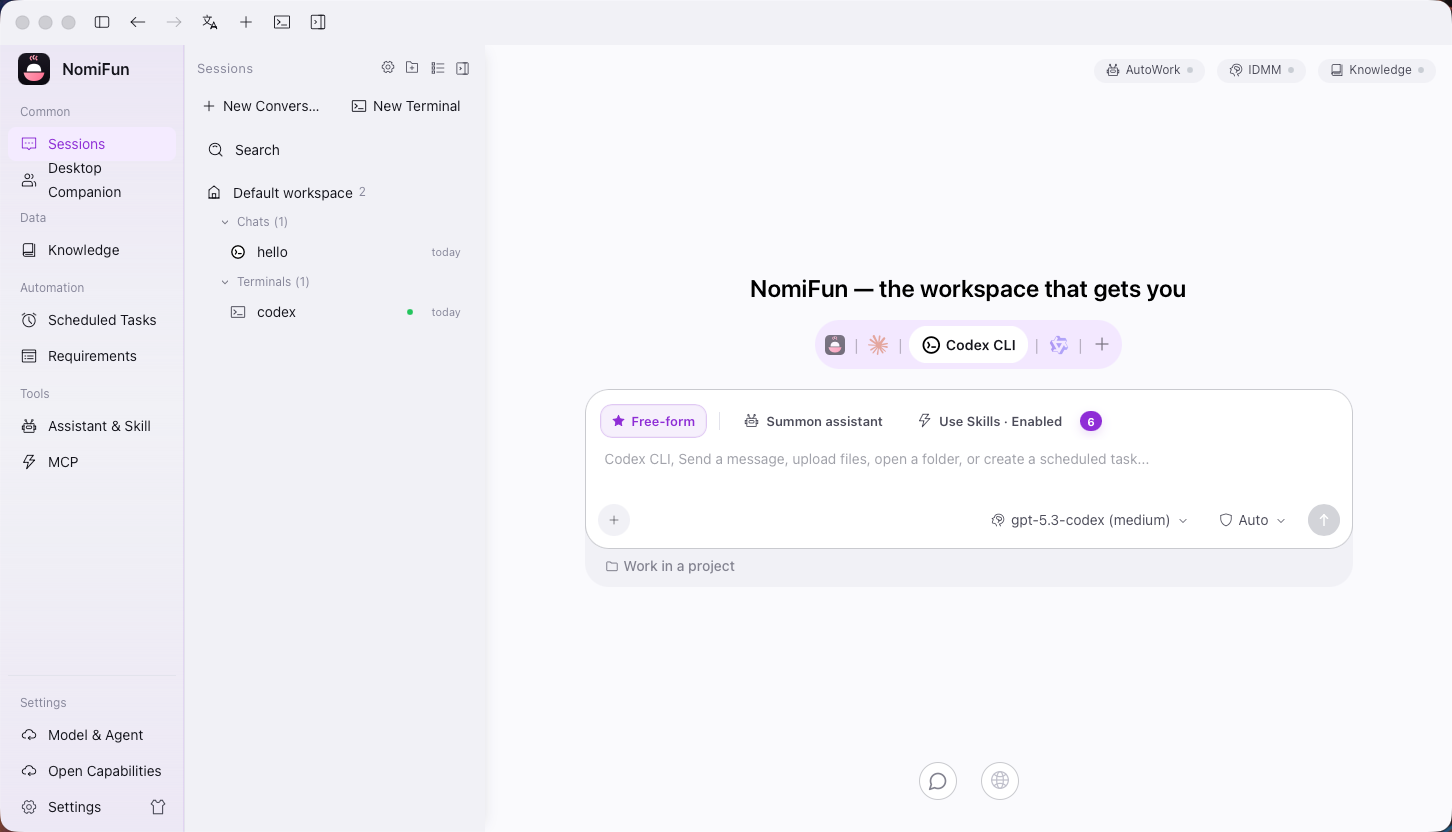
Creating a session takes you to /conversation/:id. Start one from the sidebar’s “New session”, or from the /guid home by choosing an agent, model, and prompt.
Steps
-
Pick an agent and model. In the home or the session header, choose a backend: the built-in Nomi needs no extra install and is best for a first run; you can also pick external CLIs like Claude Code, Codex, Gemini, Qwen, or OpenCode (those require the matching CLI installed on the host first). For agents that support switching, also choose a provider and model id.
-
Get to know the four panels. A session page typically has:
- Message stream — model replies, tool calls, file changes, and execution status.
- File tree — files in this session’s working directory, updating live as the agent reads and writes.
- Preview panel — view code, Markdown, PDF, Office, HTML, and diffs directly.
- Terminal — a PTY mounted to the working directory, operating on the same files as the session.
-
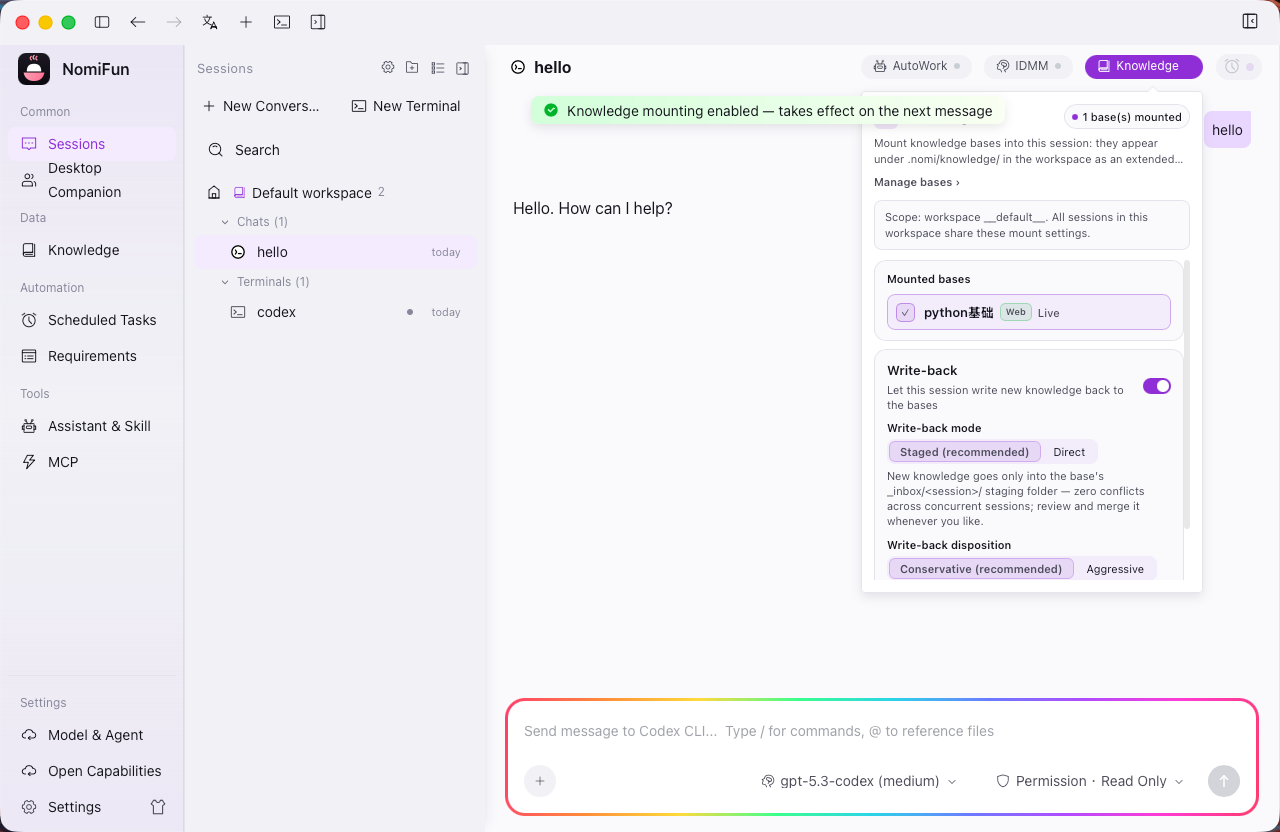
Mount a knowledge base (optional). Attach an existing knowledge base to the session so the agent running in it (nomi, an ACP agent, or a terminal CLI) can ground its answers in that content. Current sources include local Markdown, URL snapshots, and the progressively opened Feishu connector (with SSRF protection).
-
Enable AutoWork (optional). To hand a batch of requirements to the session for unattended, one-at-a-time processing, open the AutoWork control in the session header: pick a tag, set an optional completion cap, and enable. The orchestrator then claims and runs them through
pending → in_progress → done. This is the standard place to bind a tag.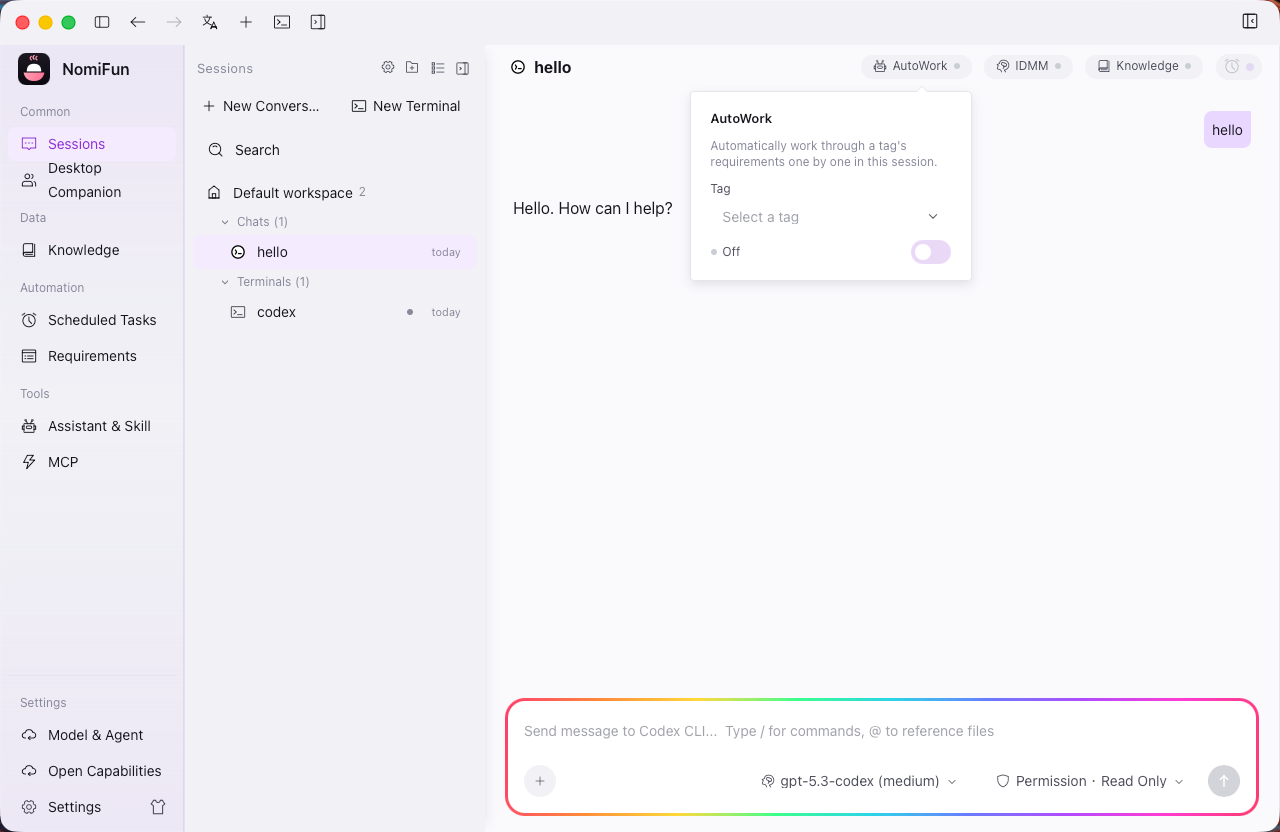
-
Add decision watch (optional). For long, unattended sessions, turn on IDMM (Intelligent Decision-Making) in the same header: it keeps a turn alive through provider hiccups and decision stalls, escorting it to a terminal state instead of timing out. See “Related” below.
Notes and limits
- Each session has its own working directory — the file tree, preview, and terminal all revolve around that one directory, with no cross-talk between sessions.
- Preview covers the common formats — code / Markdown / PDF / Office / HTML / diff render right in the panel, no external app needed.
- The terminal is mounted to the working directory by default — it acts on the same files as the message stream, handy for manual checks or running commands yourself.
- Memory has shared / private scopes; skills are per-companion — shared memories are family-wide, private memories are visible only to their owning companion, and each companion’s skill library stays isolated.
- Failure-watch and decision-watch are off by default — turn them on in the session header when you need them; a model failover queue (up to 4 switches) can be triggered.
- Knowledge base sources — the Feishu connector is shipped; Notion is on the roadmap and not yet supported.
FAQ
- Are the session and the terminal the same working directory? Yes. The in-session terminal is mounted to that session’s working directory by default, so what you see and change in the terminal is the same file shown in the tree.
- Can the preview edit files? The preview panel is for viewing (including diffs); writes are done by the agent or the terminal, and you watch the result update live in the panel.
- Is it fine to skip AutoWork? Completely. AutoWork and IDMM are both optional and off by default — a normal interactive session needs neither.
Related
- Mount a knowledge base — prepare grounded sources for a session.
- Unattended automation · AutoWork — the full write-up on AutoWork and the IDMM decision watch.
- MCP and skills — wire tools and skills into a session.
Full docs → GitHub