
Channels
With channels, you operate NomiFun’s companions from external chat apps instead of sitting at the desktop. Enable a connector, paste its credentials, authorize a chat user with a one-time pairing code, and from then on messages to your bot route to a companion — its replies come back to the same chat.
The default master-agent mode has the companion itself answer remote messages: the session inherits the companion’s personality and memory and is wired to the Desktop Gateway tools — so the thing you’re chatting with on your phone isn’t an isolated bot, it’s the agent that runs your whole desktop. “Move my daily-report cron to 9am and tell me what’s running on the desktop right now” is a single Lark message.
Where to find it
Open the Nomi page (sidebar “Companions & Channels”, route /nomi), pick a companion, and open its Remote tab. It lists the connectors available to that companion — each with a status pill (stopped / connected), the bot username once connected, the current authorized-user count, and a per-channel default companion / default model picker.
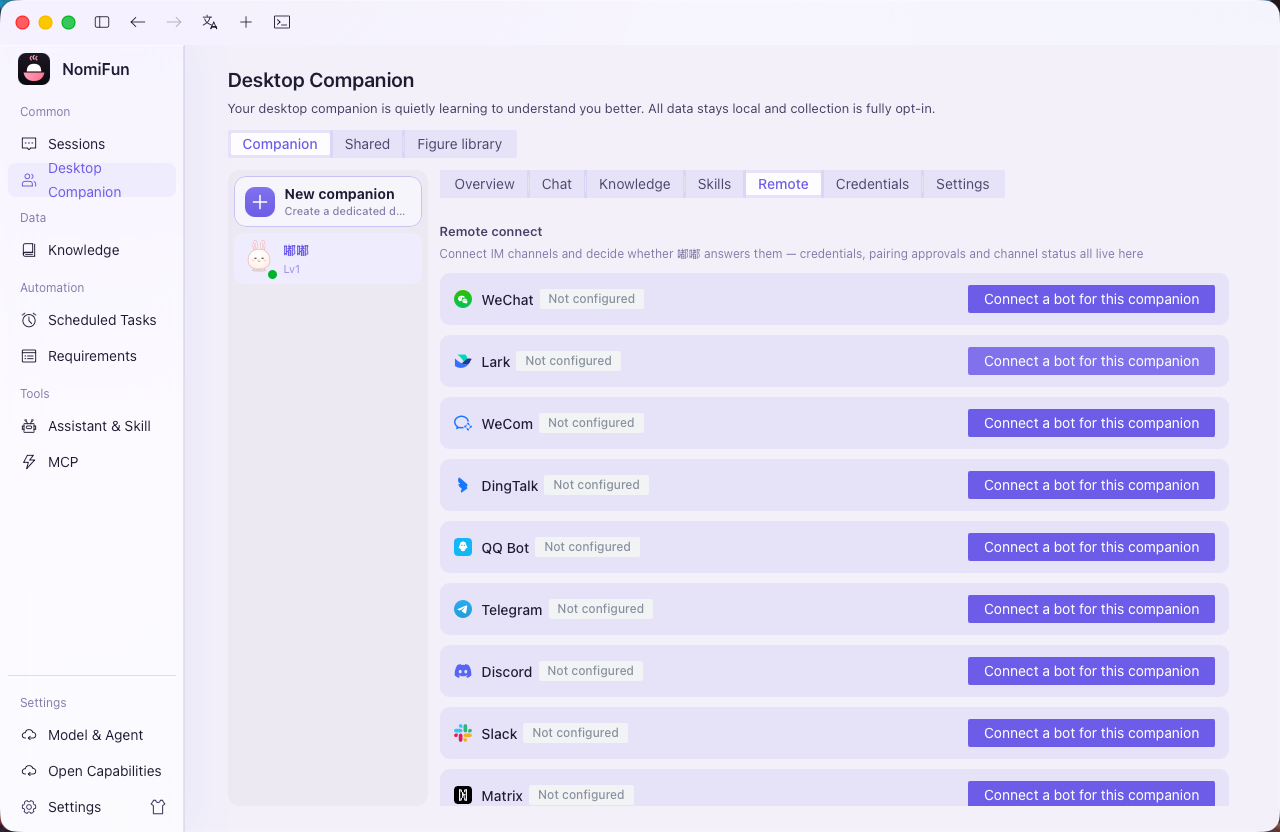
The 12 channels in the default build
Telegram, Lark / Feishu, DingTalk, WeChat, WeCom (Enterprise WeChat), Slack, Discord, Matrix, Mattermost, Twitch, Nostr, and QQ Bot — 12 built-in channels compiled into the default Desktop backend. Each platform still requires you to create its bot or app, provide credentials, and follow that platform’s network and review requirements.
Steps
-
Find the entry point. In Nomi → Remote, select the connector you want to wire up. Each connector is its own row of configuration and they’re independent.
-
Paste credentials and enable. Per platform:
- Telegram: create a bot with @BotFather, save the token (
123456:ABC-DEF…), paste it in, click Test to verify (the backend callsgetMeand echoes the bot username), then Enable. - Lark / DingTalk: create a custom app in the respective developer console, fill in the App ID / App Secret (DingTalk uses Client ID / Secret with Stream mode enabled), then Enable.
- WeChat: just click Enable and scan the QR code with the WeChat app; the plugin flips to
connected.
- Telegram: create a bot with @BotFather, save the token (
-
Pair an authorized user. Pairing has two entry points:
- A platform user messages the bot for the first time, and the bot replies with a 6-digit pairing code (10-minute TTL);
- You paste or confirm that code under Remote → Pending pairings on the desktop and click Approve.
- Approved users appear in Authorized users with a
last activetimestamp and can be revoked anytime; revoking also clears that user’s active session, so their next message re-pairs from scratch.
-
Choose the handling companion and default model. In the connector panel, set the companion and default model for that channel — the configuration panel shown above is the entry point. Each IM platform can bind one companion; switching a binding resets that channel’s active session so the next message is handled by the new companion. A channel row with no binding falls back to the default companion.
What you can do from IM
- Plain text both ways, with streaming edited replies — the companion’s incremental updates are edited into the in-flight bot message (except WeChat, which falls back to sending a new message).
- Action buttons — confirm prompts, retries, etc., rendered as each platform’s native inline keyboard (Telegram) / interactive card (Lark) or equivalent.
- @-only in groups — a group chat can be set to respond only when the bot is
@-mentioned.
Not yet doable from IM: creating a team (use the desktop / WebUI), file uploads beyond the platform plugin’s native ability, or per-user workspace selection.
Notes & boundaries
- One companion per platform. Bots bind to a companion per channel row, and the structure guarantees one bot is never bound to a second companion; the same platform can host multiple bots (e.g. a separate Lark custom app per companion).
- No binding → default companion. A channel row with no explicit binding falls back through the platform preference to the default companion; if a bound companion is later deleted, it auto-falls back to the default and resets the session.
- Memory has shared / private scopes. Shared memories are family-wide; private memories are visible only to their owning companion. Skills, by contrast, are per-companion isolated, each with its own skill library.
- Pairing-code safety. 6-digit random code, 10-minute TTL, with a periodic sweep that expires stale codes.
FAQ
Which companion handles a channel with no binding? It falls back to the default companion, still carrying personality, memory, and the gateway tools.
Can I turn an IM conversation directly into a requirement / issue? Inbound-to-requirement isn’t supported yet — it’s a roadmap item (coming soon). Completion-style notifications, by contrast, are outbound webhooks (Lark signed card / Slack / HTTP).
Why can’t WeChat edit replies in place? The WeChat API doesn’t support message editing, so replies are delivered as new messages in the same chat.
Related
- Companions — multi-companion management, shared/private memory scopes, and per-companion skill libraries.
- AutoWork & Requirements — outbound completion-notification webhooks and requirement logging.
Full docs → GitHub