
Requirements & AutoWork
The requirements platform is NomiFun’s flagship automation: a requirements board plus an orchestrator that drives AI agents (or an agent CLI running in a terminal) through your requirements one at a time, without you watching. You register requirements, group them by tag, bind a tag to a session or terminal, and the orchestrator claims, executes, and finalizes them in order.
It is all backend-authoritative: AutoWork resumes automatically on process startup and runs whether or not the UI is open.
Entry point: the “Requirements” item in the left sidebar, route
/requirements. Extensions (binding management, completion notifications) live at/requirements/extensions.
A few concepts first
- Requirement — one unit of work: a title, content (the actual instruction for the agent), a tag, an
order_key(a lexicographically ordered string), and a status. - Tag — an arbitrary string that groups requirements into a queue. Bindings, board columns, and notification routing are all keyed by tag.
- Status —
Pending → InProgress → Done(orFailed/NeedsReview). Each status is a board column. - Orchestrator — one resident loop per binding: claim the lowest-
order_keyPendingrequirement in the tag → inject the instruction → wait for the turn to finish → finalize → repeat. When the queue is empty it idles rather than exiting.
Steps
1. Submit a requirement
On /requirements, click “New requirement.” Write the content as a ticket: enough context for the agent to start without asking back, plus a clear definition of done. The order_key orders the queue lexicographically (e.g. 1.0, 1.1, 1.2.0); smaller goes first.
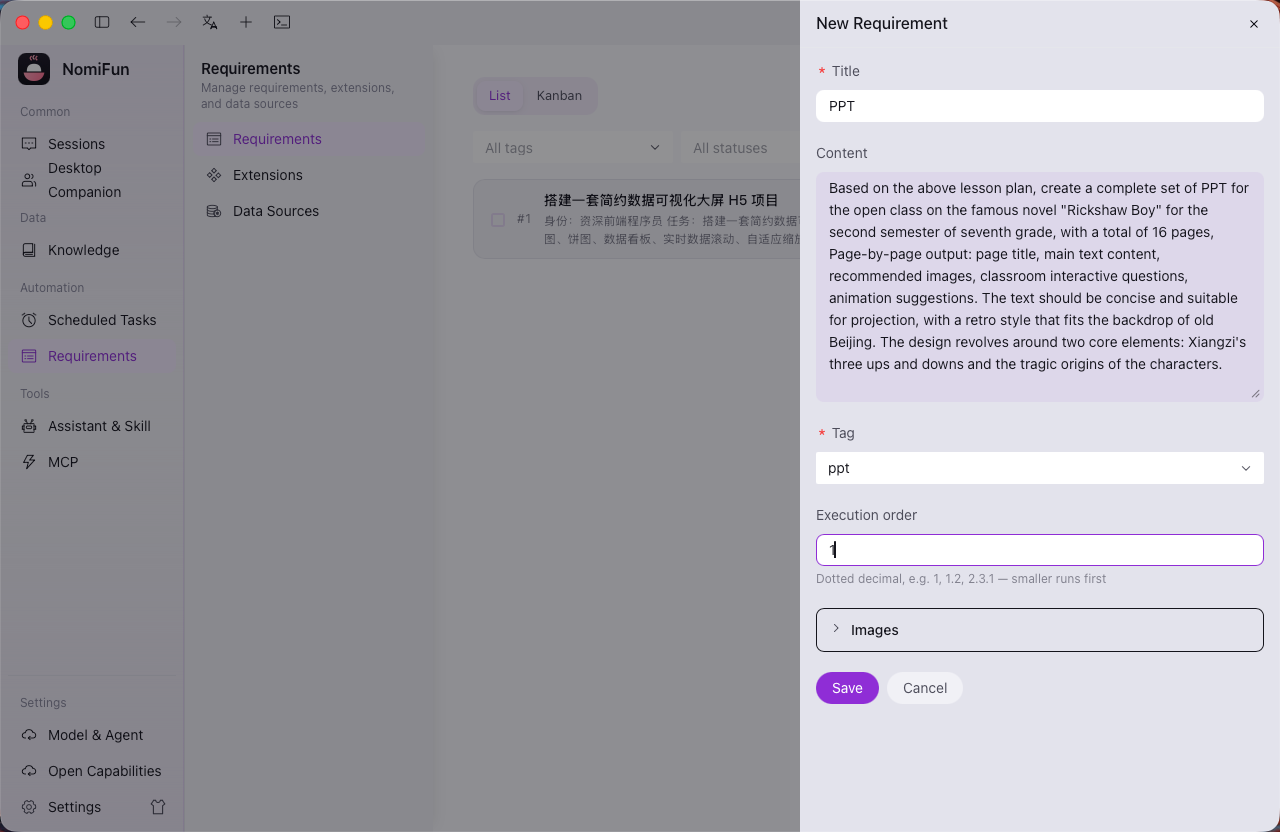
Once submitted, the row enters the queue. If a session is already bound to that tag, it wakes immediately and starts working on it (assuming nothing is ahead of it).
2. Browse the list and the board
The list is a flat table you can filter by tag, status, or full text, and batch-delete. Click a row to open the detail drawer.
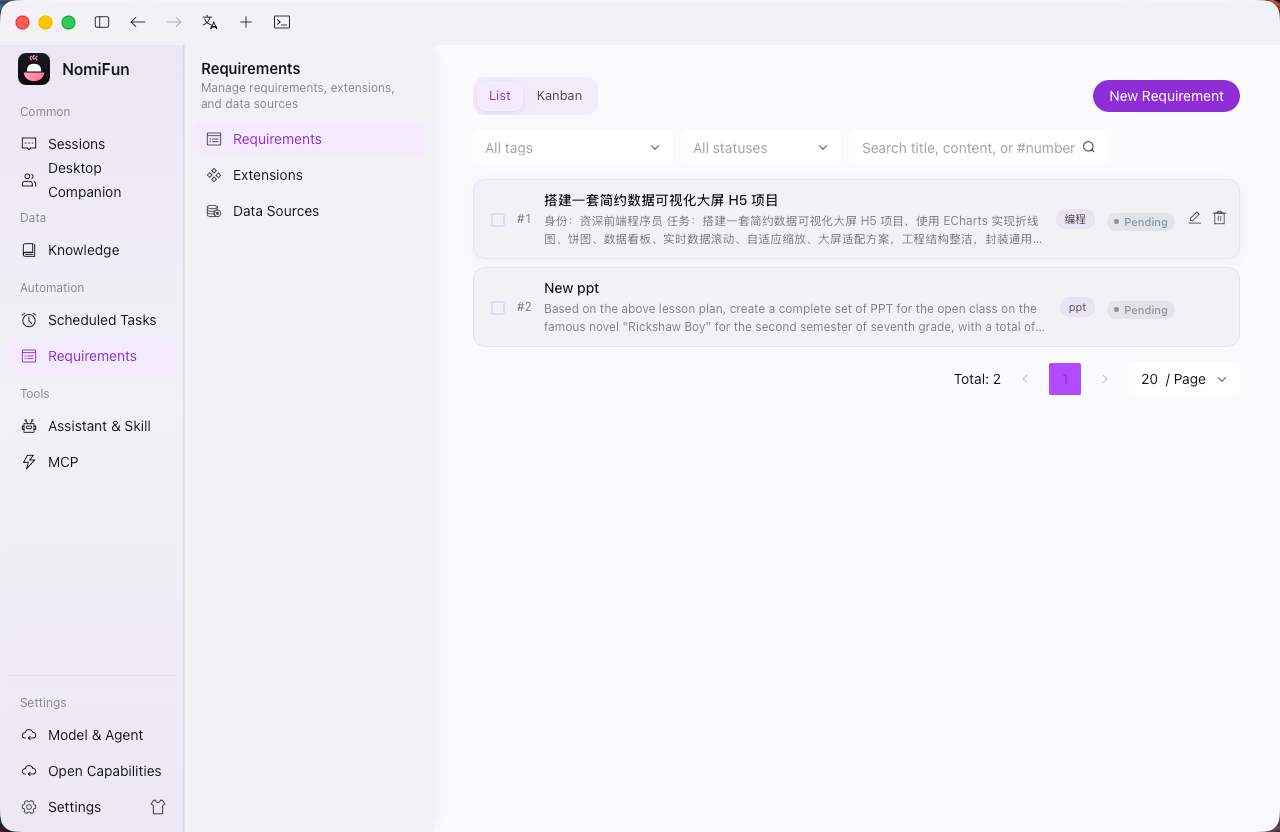
Before you have any requirements you see the empty state — start right there with “New requirement.”
Switch to the board view (/requirements?view=board) and the selected tag gets one column per status, refreshed live as the orchestrator moves things. The board does not change status by drag-and-drop — use the detail drawer for that.
3. Bind a target: session or terminal
A binding looks like (target_kind, target_id, tag, optional cap). There are two target kinds:
- Session target — open any session (running the built-in nomi or any ACP direct-connect agent) and, in the header AutoWork control, pick a tag, set an optional completion cap, and enable. Each round the orchestrator claims the next requirement, builds an injected instruction that’s hidden from the visible transcript, and marks the row
Doneonce the turn ends cleanly. - Terminal target — open a terminal preset to
claudeorcodex(a plain shell, or Gemini, is not yet eligible); the same AutoWork control appears in its header. Bind a tag and enable. A terminal turn is considered finished when its output goes quiet.
Full Auto is strongly recommended. If a round hits an interactive approval prompt, it blocks until timeout. Every agent CLI has a non-interactive switch, and the terminal’s Full Auto mode adds it for you (see Terminals).
Once bound, the orchestrator cycles Pending → InProgress → Done/Failed/NeedsReview, executing one loop per tag in order.
4. Configure completion notifications (outbound webhook)
Go to Requirements → Extensions → Notify (/requirements/extensions?tab=notify) and create a completion-notify webhook first.
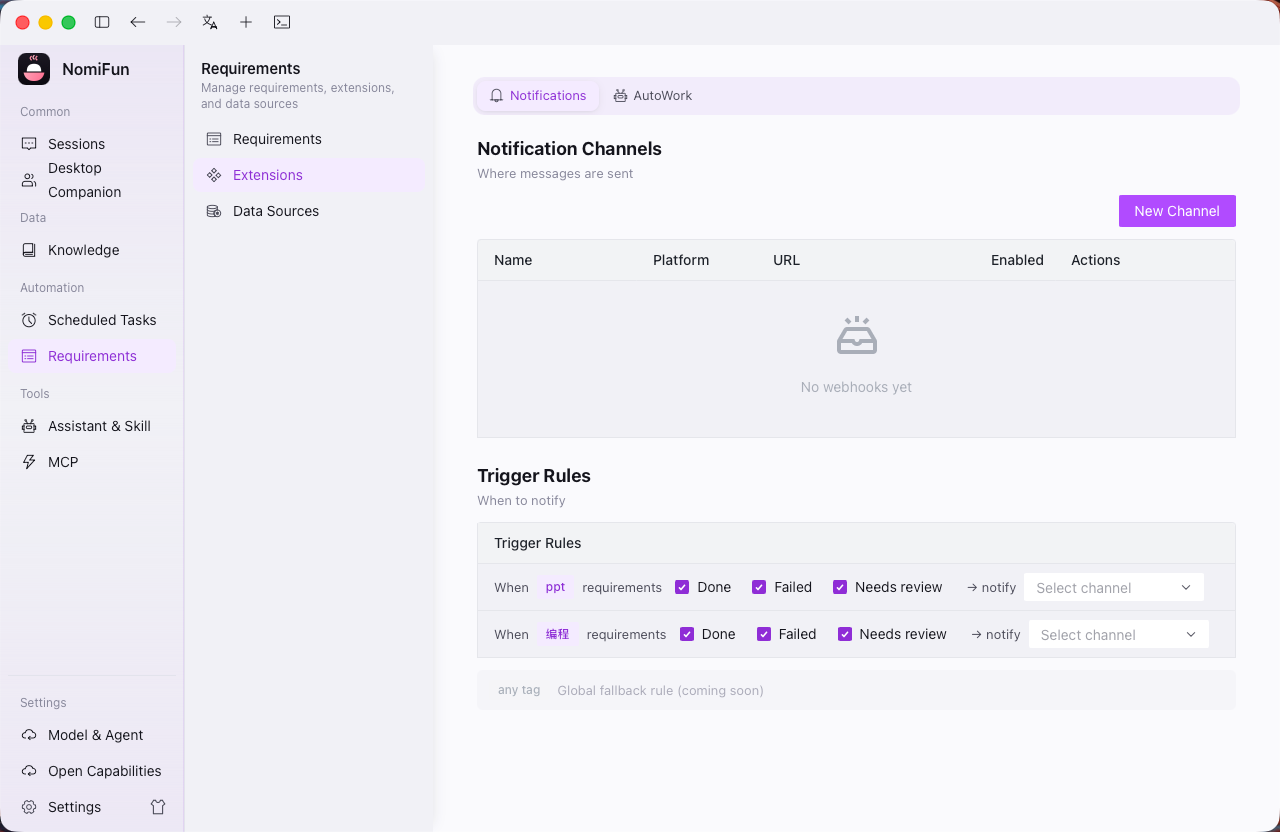
Click “Add webhook.” Three targets are supported: a Lark signed card / Slack / generic HTTP endpoint. Fill in a name, the URL, and an optional signing secret (Lark custom bots sign with the standard HMAC-SHA256 scheme). Hit Test to send a card and confirm reachability.
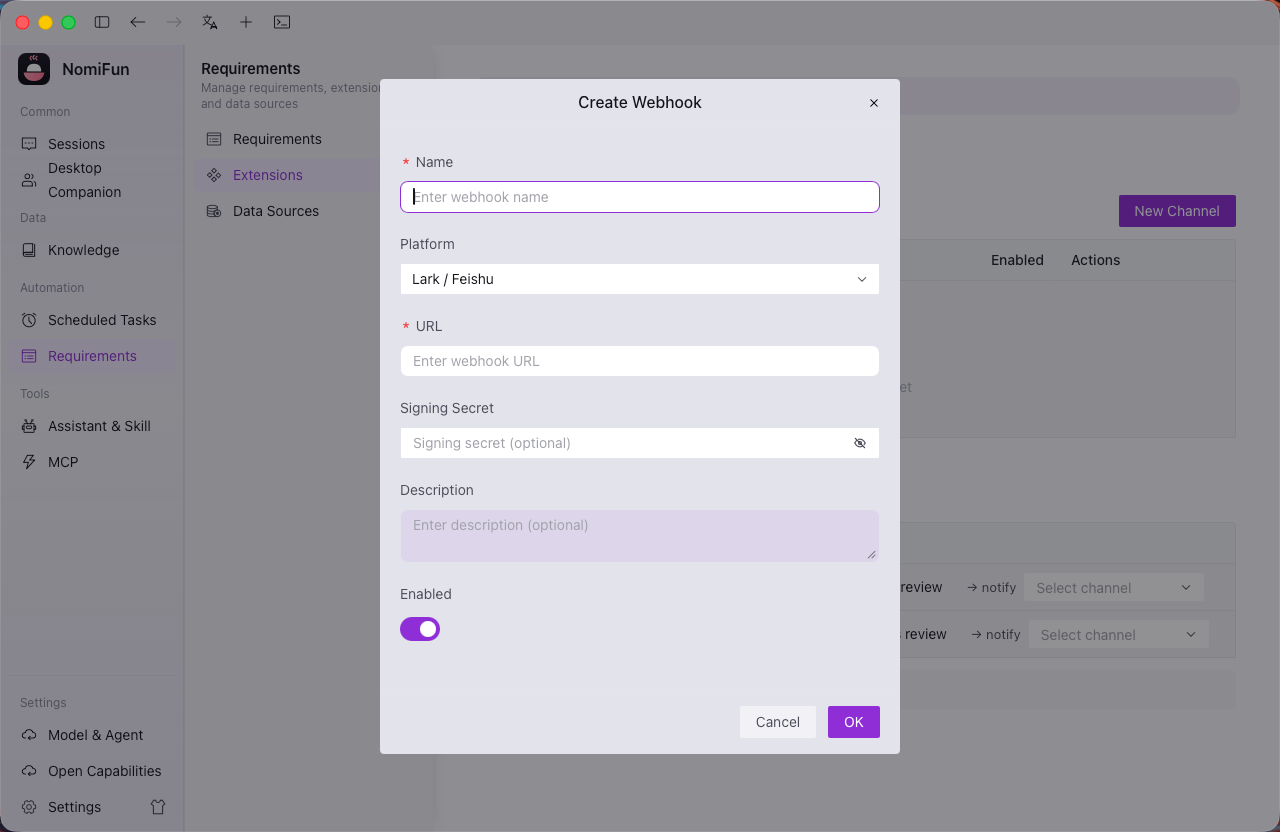
Back in the Notify tab, pick a webhook for the target tag from the dropdown. When a requirement reaches a terminal state, the orchestrator pushes an outbound card with fields for requirement id, name, content, completion status, and the completion note (the report captured that round). A flaky webhook is logged as a warning and swallowed — it never affects requirement status.
Notes & boundaries
- Completion notifications are outbound only. Lark / Slack / HTTP webhooks only push results out when a requirement finishes. Turning issues or IM messages inbound into requirements is on the roadmap (coming soon) — do not treat it as a shipped intake path. For now requirements can only be registered by you in the UI.
- The board is not drag-driven.
Pending → InProgress → Done/Failed/NeedsReviewis cycled by the orchestrator per tag in a single loop; change status from the detail drawer. - A crash never strands a task. A lease sweeper runs every 60 seconds, resetting any
InProgressrow whose lease has expired and whose holding session is gone back toPending, re-dispatching the orphaned task. - It runs while you’re away. Each binding’s
enabled/tag/ cap is persisted, and on process startup the backend resumes those loops itself, per user and per binding. The UI just shows you what’s already running — the backend is the single source of truth. - Terminals resume where they left off. A bound terminal whose PTY has exited keeps the loop alive in an idle state; restart the terminal and AutoWork picks up from where it stopped — no need to unbind and rebind.
FAQ
Why does AutoWork keep running after I close the tab? By design. The orchestrator is resident in the backend; the UI is only an observation window.
What happens after the completion cap is reached? The binding is persisted as disabled, so the cap survives a restart; re-enable it when you want to continue.
Related
- IDMM intelligent watch — keeps a stuck turn alive, stacks with AutoWork
- Terminals — use an agent CLI as a terminal target with Full Auto
- Sessions — session targets and the AutoWork control
- Channels — current state of IM integrations
Full docs → GitHub