
Built-in terminal
NomiFun ships a real terminal inside the app. Each terminal is a native PTY session managed by the backend that you drive interactively from the desktop window or browser. Attach it to a session’s working directory and it operates on the very files in the file tree — or hand it to AutoWork to drive on your behalf.
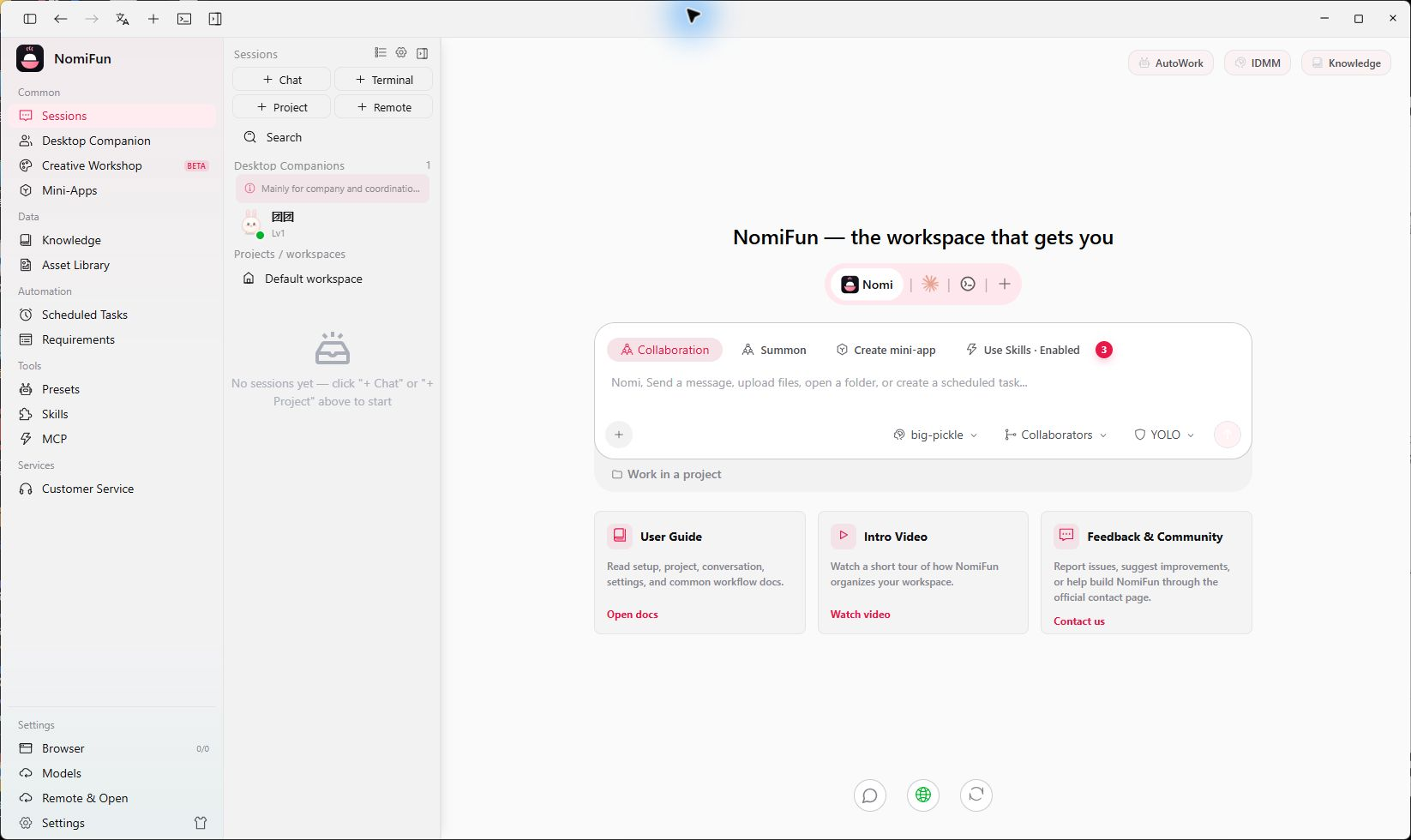
Create one from the Terminal section in the sidebar, or navigate to /terminal-new. The session page lives at /terminal/:id.
Steps
-
Create a terminal. Click + in the sidebar’s terminal section to open the create page. The session row is persisted, so it stays in the list after you restart the app.
-
Pick a working directory. Set the directory the child process is spawned in. Attach it to a session’s working directory and the terminal operates on the same files as the message stream. Recently used directories are remembered.
-
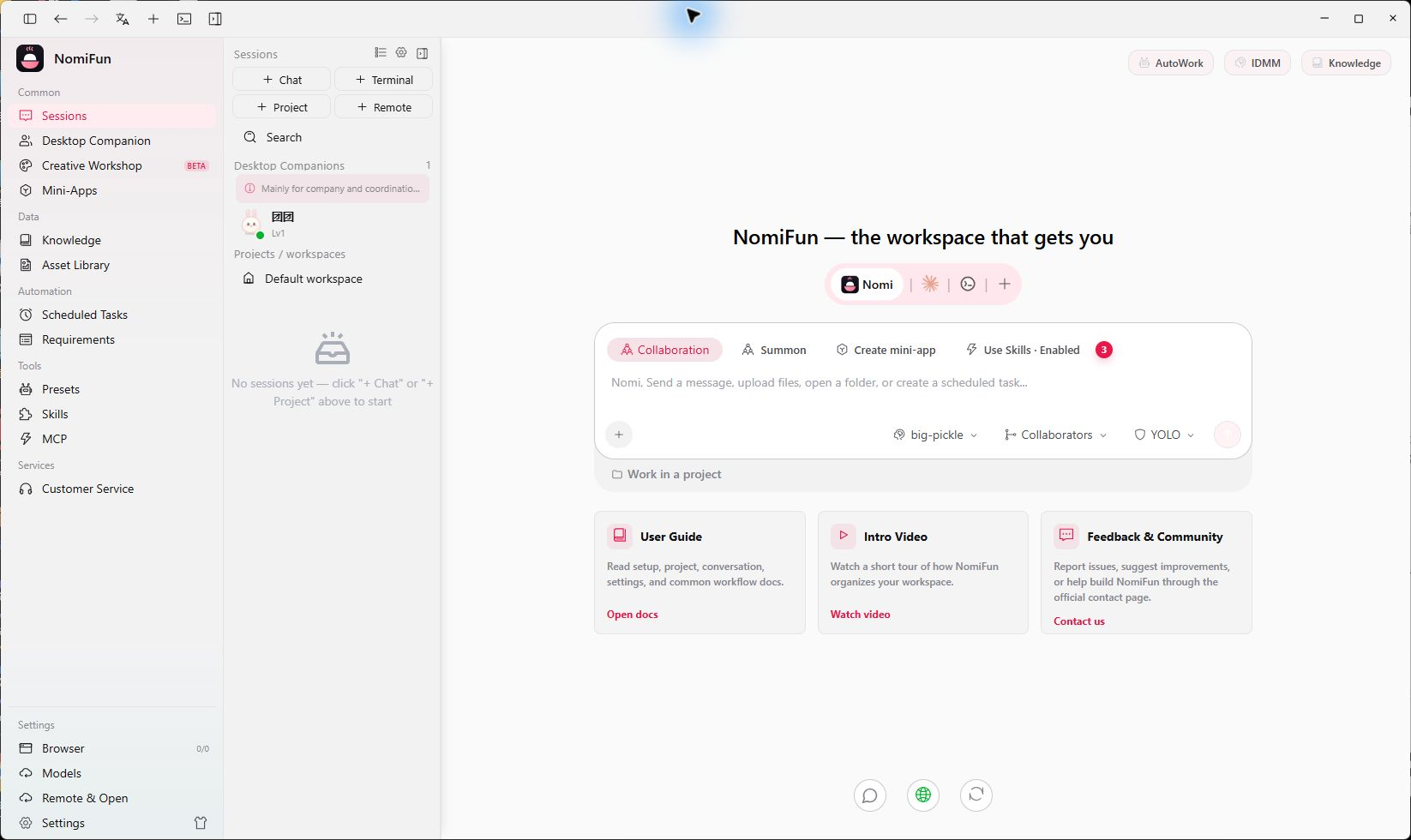
Pick a preset. Four presets:
- Shell — resolves at launch to your platform’s login shell (PowerShell/
cmdon Windows,$SHELLon macOS/Linux). - Claude Code / Codex / Gemini — launches the matching agent CLI binary, which must already be installed and on
PATH.
- Shell — resolves at launch to your platform’s login shell (PowerShell/
-
Set the permission mode (agent presets only).
Defaultkeeps interactive approvals;Full Autoappends the CLI’s own non-interactive flag to skip step-by-step confirmations. Full Auto grants the CLI broad power on your machine — treat a Full Auto terminal like a logged-in shell. -
Tweak the launch command and launch. The create page renders the resolved
command + argsinto an editable field; adjust it as needed (extra flags, an alternate entry point) and press Launch. The page jumps to/terminal/<id>and live output starts streaming.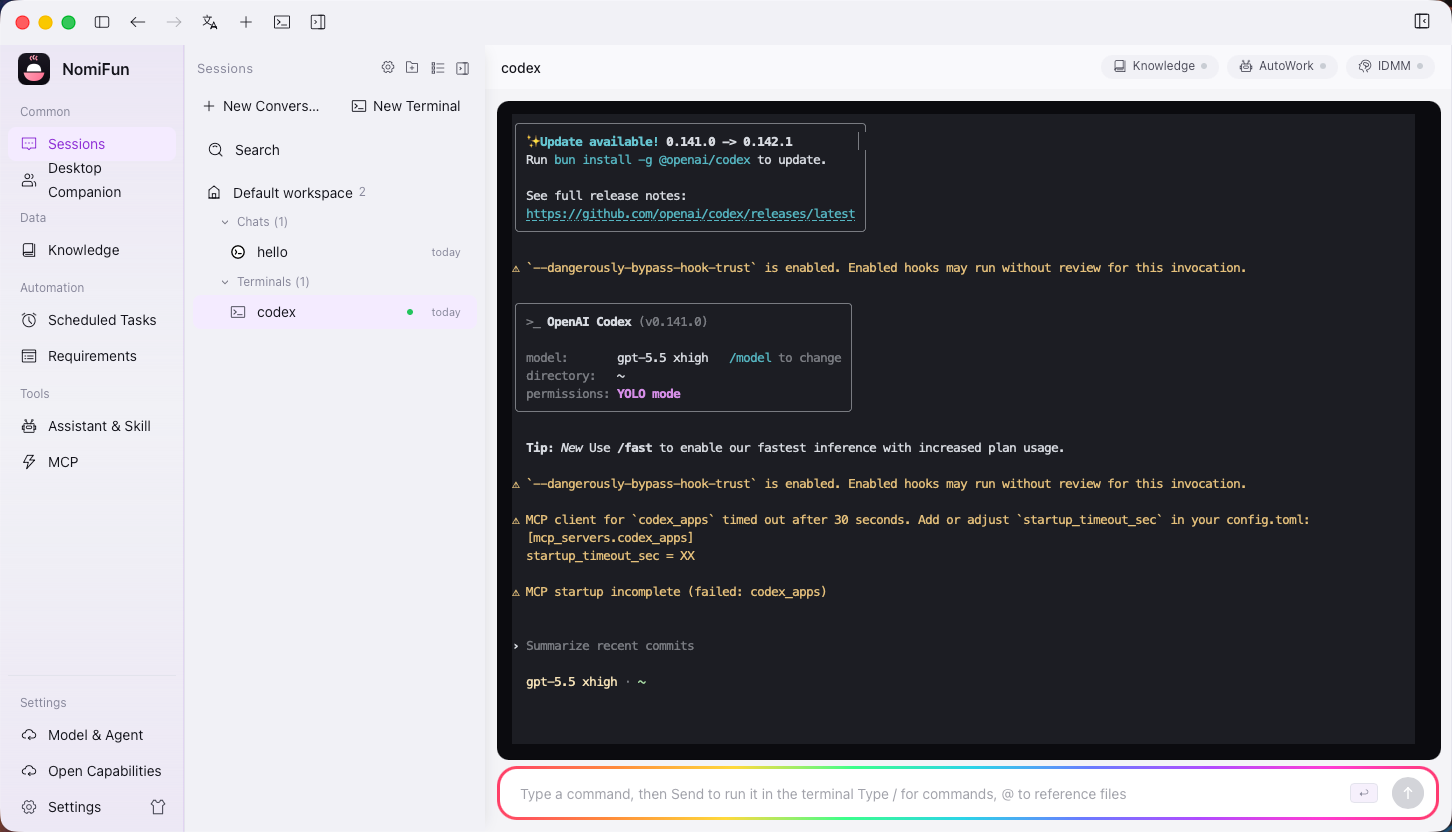
-
Drive the session. The session page is an xterm.js view wired to the live stream:
- Type to send keystrokes to the PTY; pastes land as a single paste, so multi-line text isn’t a flurry of returns.
- Resize the panel and the backend resizes the PTY to match (and persists it).
- Rename / pin from the session header; pinned terminals float to the top of the sidebar.
- Kill stops the child but keeps the row (you can relaunch in place); Delete kills it and removes the row entirely.
- Relaunch after the child exits reuses the stored command + directory + env in place, so the same sidebar row picks up the new process.
Notes & boundaries
- Native PTY, not an emulation. The terminal is a real pseudo-terminal child process spawned by the backend, so TUIs, color output, and interactive CLIs all work.
- Attaches to the session working directory. Once attached, the terminal and the session act on the same files — handy for manual checks or running a command to fill a gap.
- Relaunch is in place. The same session id picks up a new process, so restarting a CLI never spawns a duplicate sidebar entry.
- Metadata persists; the PTY doesn’t migrate. Name, directory, command, env, and size are stored locally; after the child exits the row remains but the live PTY is gone until you relaunch.
- Can be an AutoWork target. Only agent-CLI terminals (Claude Code / Codex) are eligible for AutoWork; a plain Shell can be driven by hand but is not an AutoWork target. See “Related” for binding.
- Stacks with decision-watch. Long-running sessions can enable IDMM from the session header to escort a turn to a terminal state through provider hiccups or decision stalls. Failure-watch and decision-watch are off by default.
FAQ
- CLI not found? Agent presets call
claude/codex/geminidirectly — they must be on thePATHof the account running the backend. Install them globally, or edit the launch command to use an absolute path before launching. - Want to change the env or working directory? That’s by design — the session row stores them. Create a new terminal with the settings you want.
- Output looks garbled after a resize? Some TUIs need a redraw on size change. Press
Ctrl-L(or your CLI’s redraw shortcut). - Can a Shell terminal go to AutoWork? No. Only agent-CLI terminals are AutoWork targets today; a plain Shell can only be driven by hand.
Related
- The session workspace — how the in-session terminal works alongside the file tree and preview.
- Unattended automation · AutoWork — bind a terminal to a tag and let the orchestrator drive it unattended.
- Intelligent decisioning · IDMM — add a layer of decision-watch to a long-running terminal session.
Full docs → GitHub