
Companions
NomiFun’s digital companion grows from a single nomi into a family of companions: create several at once, each with its own name, avatar, persona, chat model, and bound knowledge bases — so they specialize into finance, literature, coding, or emotional-support companions over time. This page walks through raising a companion from scratch and the two data boundaries behind it.
The memory model is the key thing to understand:
- Shared / private memory scopes — memories can be family-wide or owned by one companion. Chat memories default to the active companion, while learner output is shared.
- Per-companion skill libraries (isolated per companion) — each companion grows its own set of skills, kept separate from the others.
The entry point is the Companions page in the sidebar (
/nomi). Right-clicking any desktop pet and choosing “Open chat” also deep-links here.
Steps
-
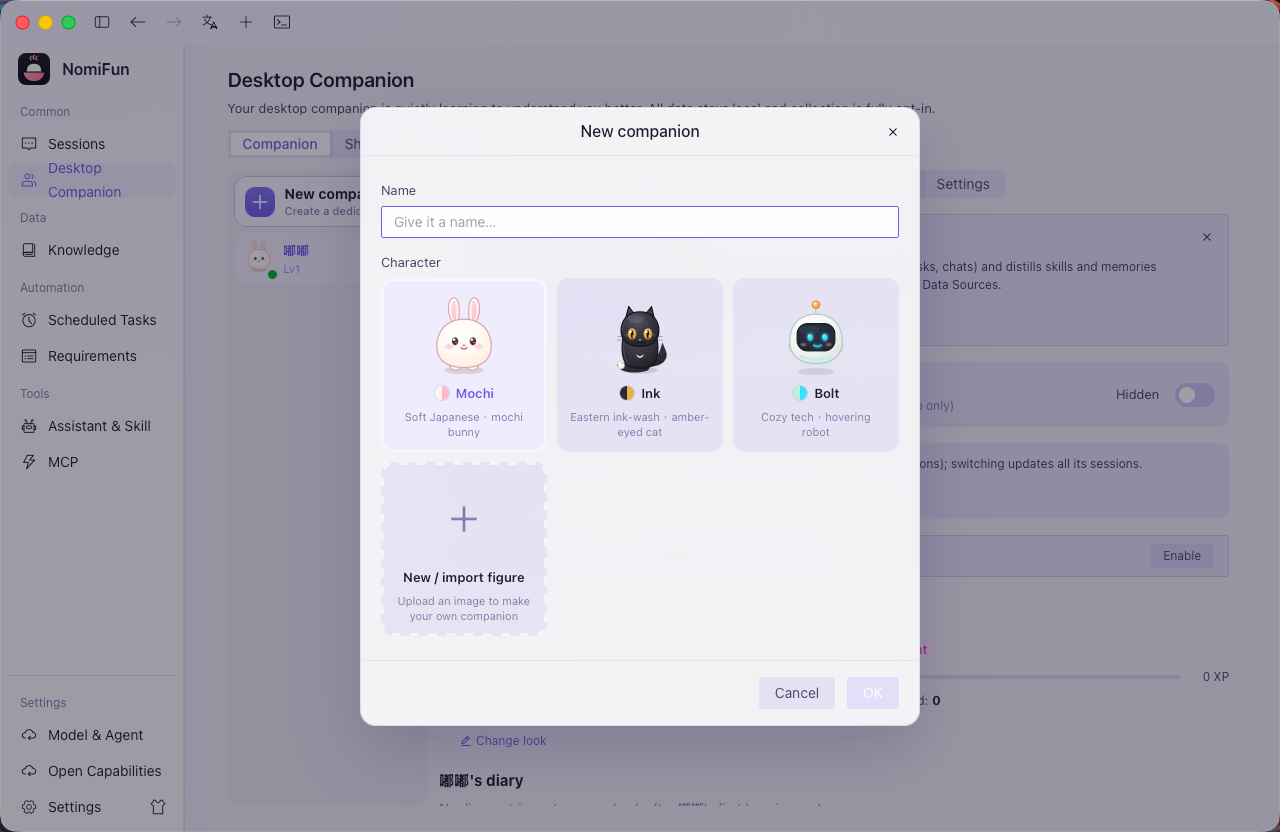
Create a companion. Click “New companion” on the companion switcher and give it a name. The first companion automatically becomes the default (default avatar: Mochi) — the default is the fallback whenever a channel has no explicit binding.
-
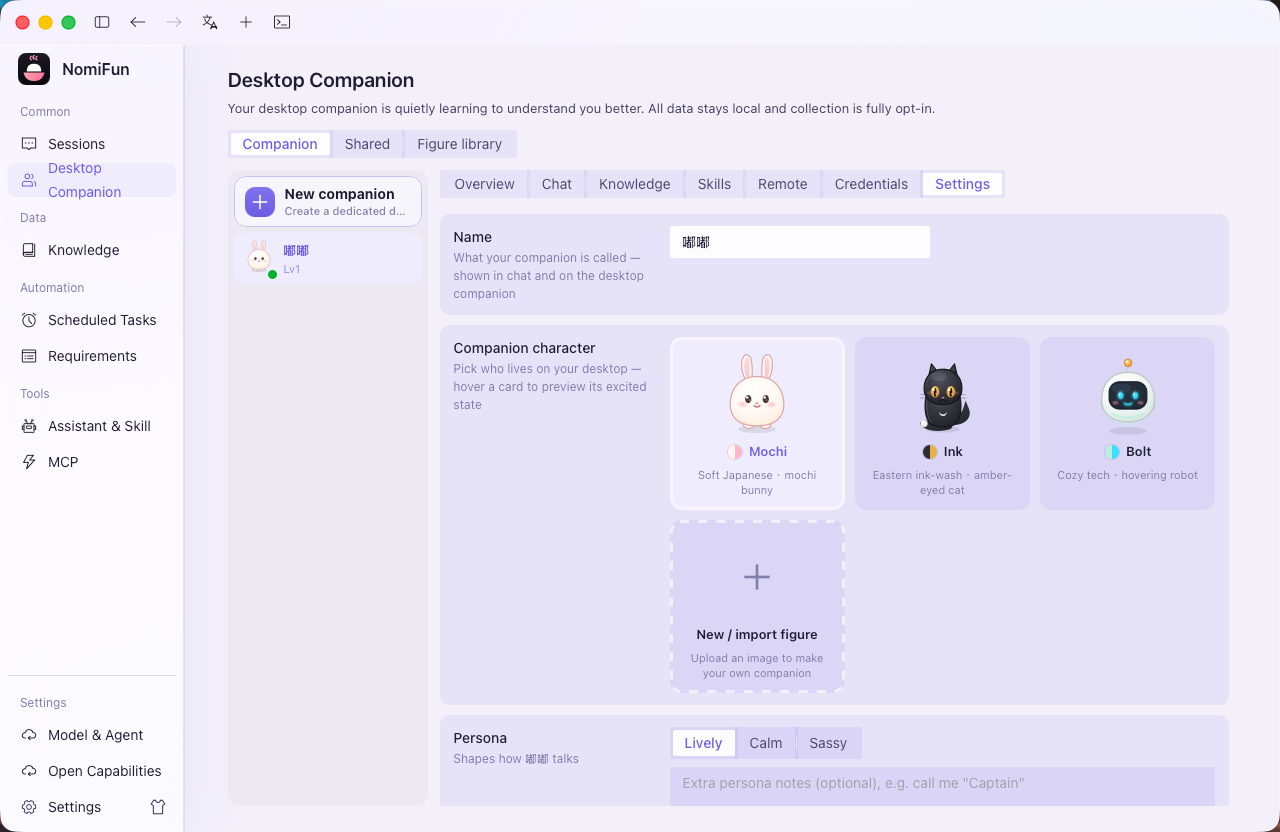
Pick an avatar. Choose one of the 3 built-in characters: Mochi (the mochi bunny), Ink (the black cat), and Bolt (the robot) — all drawn purely in SVG code, no assets to download.
-
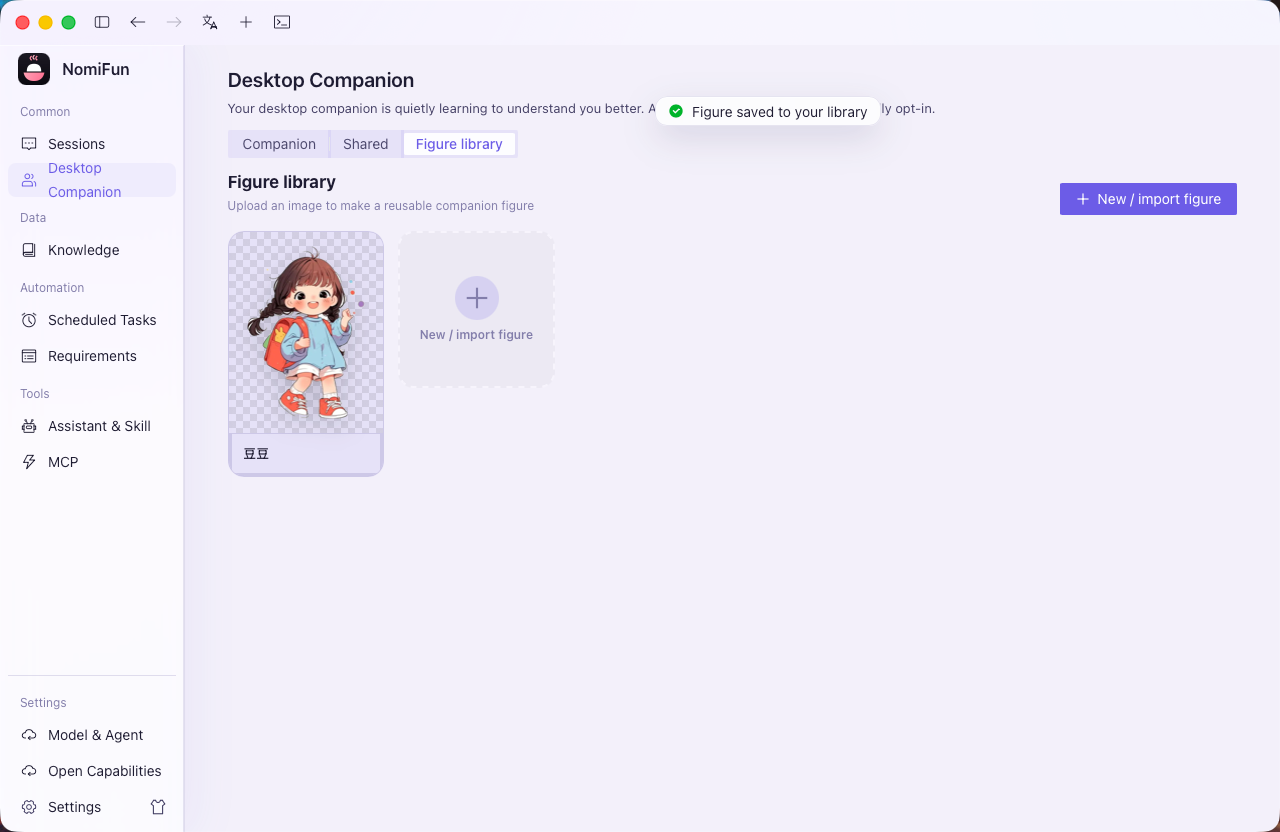
Manage the avatar library. The avatar library lists every available look — built-ins plus your own custom ones — ready to reuse across any companion.
-
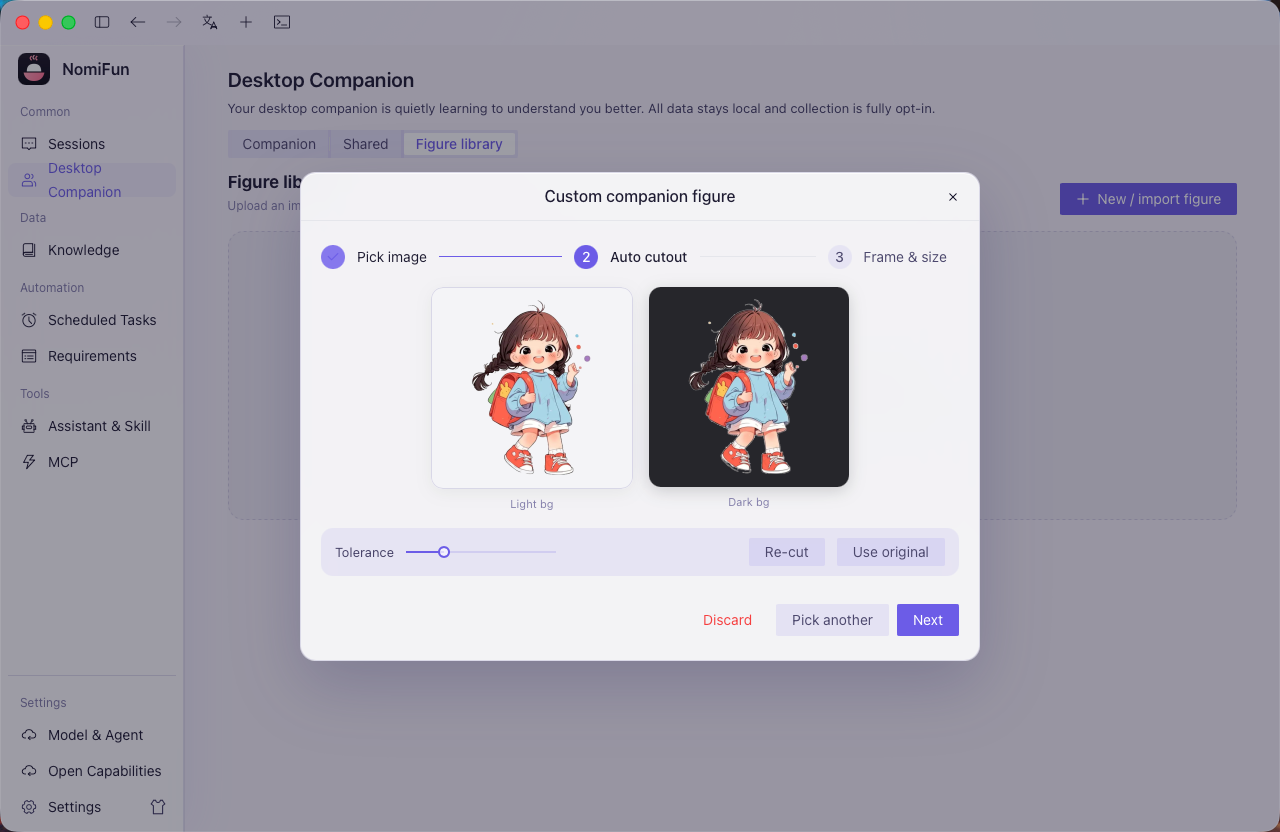
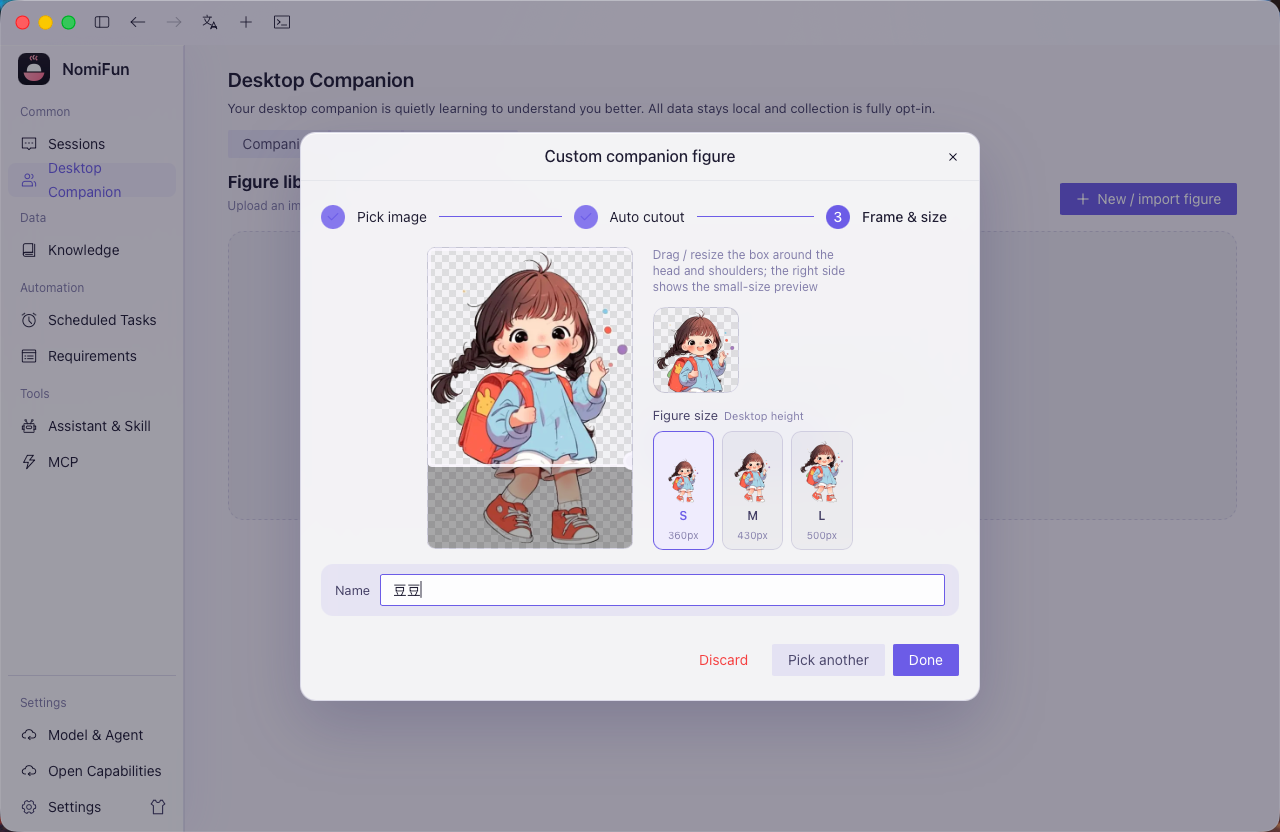
Use any IP you like. You’re not limited to the three built-ins — capture any IP as a companion avatar, even your own family or pets, and build a one-of-a-kind companion.
-
Tune the companion. In its Settings tab, rename it (takes effect instantly), swap the avatar, adjust the persona (a built-in preset or free-form text), and — per companion — pick a chat model and toggle the desktop pet and do-not-disturb hours.
-
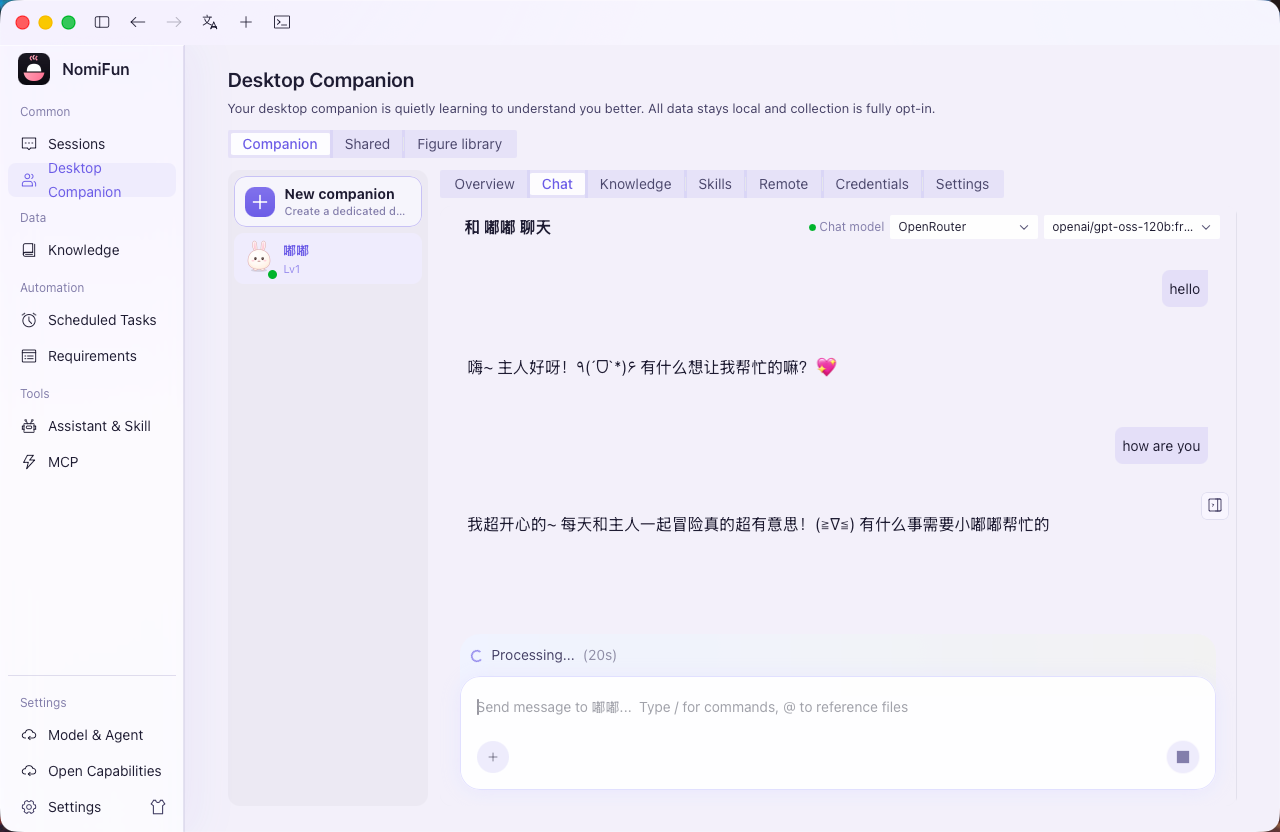
Start chatting. Talk to the companion in its Chat tab — this is its own dedicated companion thread.
-
Grow a per-companion skill library. Each companion has its own skill library, isolated per companion. The evolution engine mines reusable skills from the companion’s tool-call sequences (based only on the sequence itself — never any argument values), produces a draft, and lets you review the resulting
SKILL.mdbefore enabling it. A learned skill can also be gifted to another companion.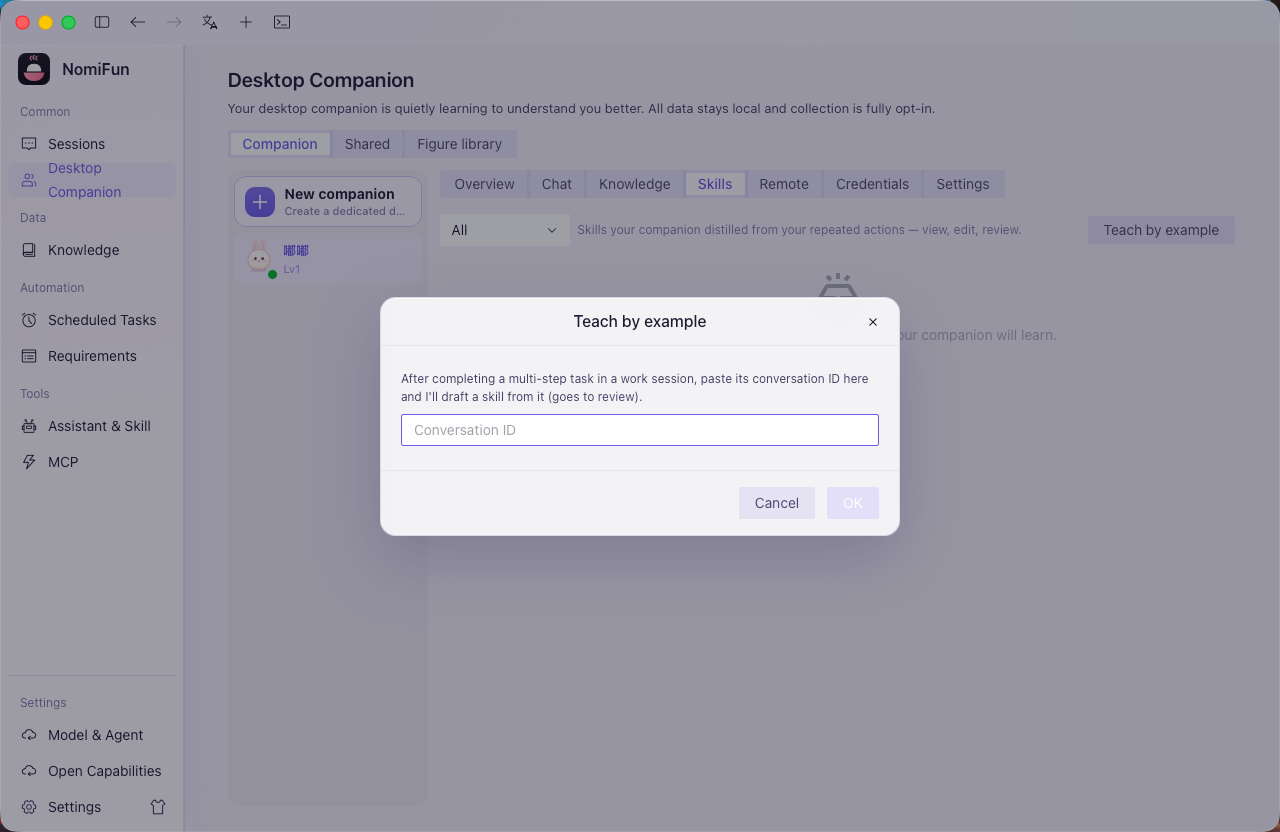
-
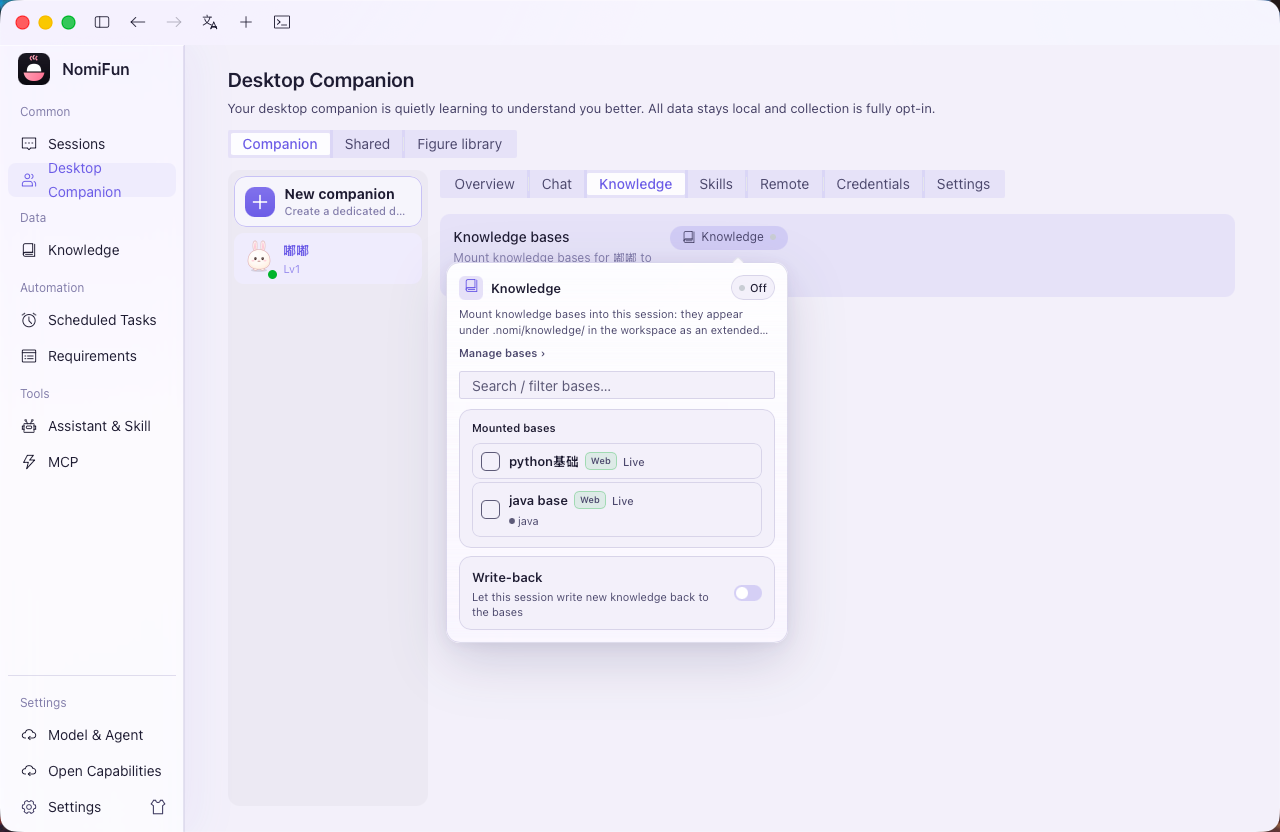
Bind knowledge bases. In the Model & Knowledge tab, mount one or more knowledge bases on this companion — binding is independent per companion, and the companion can retrieve from them while chatting (see Knowledge base). Bind different bases to different companions and you get a “finance companion,” a “literature companion,” a “coding companion.”
-
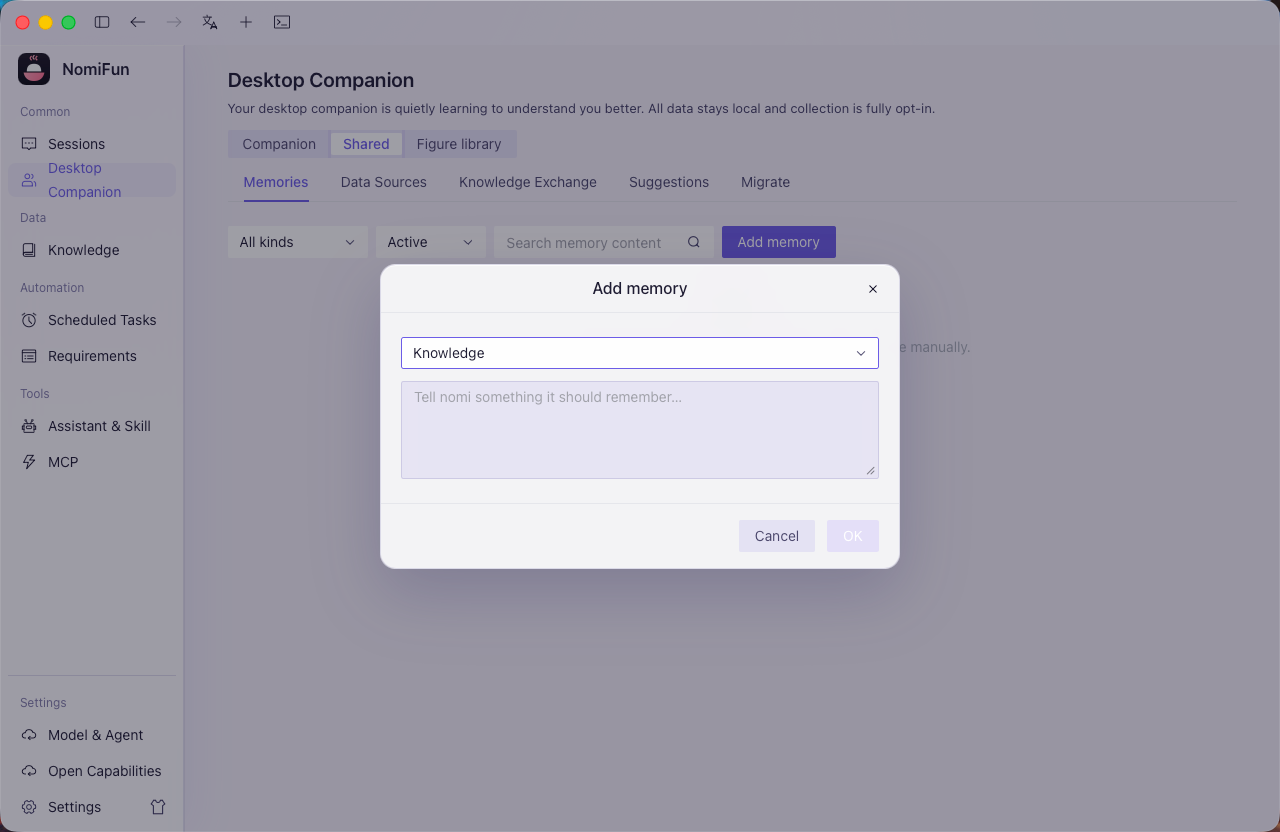
Manage shared / private memories. You can add shared memories by hand or assign a memory to one companion. Chat-saved memories default to the active companion, while learner output lands in the shared scope.
-
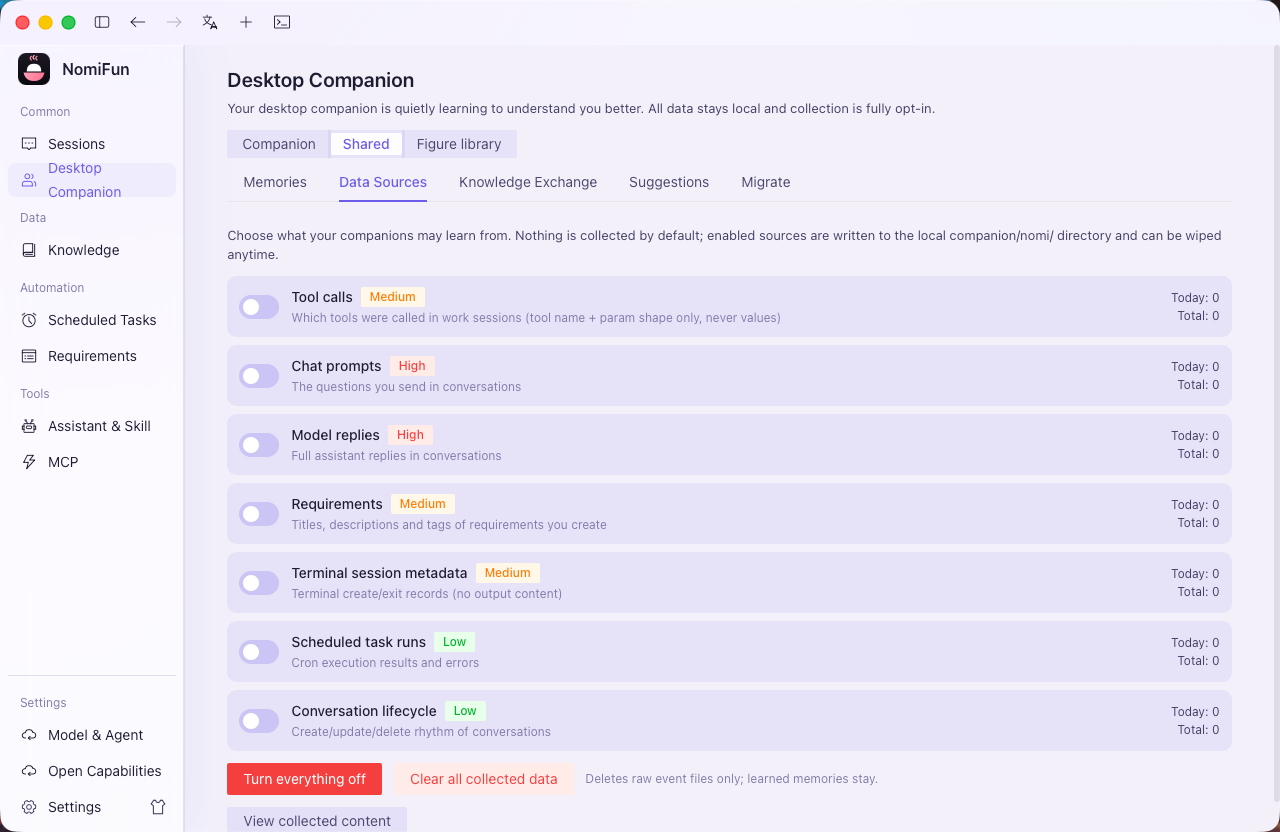
Configure data collection. Shared data collection decides which of your work data the memory hub learns from. Most collectors are off by default and opt-in, and you can control them per category.
-
Migrate to a new machine. The Migration tab in the shared area exports three kinds of
.zippack: memory, companion, and knowledge-base. On the new machine import in the order knowledge base → companion → memory for a smooth move (the knowledge bases must exist first so a companion pack’s bindings can rebind by name).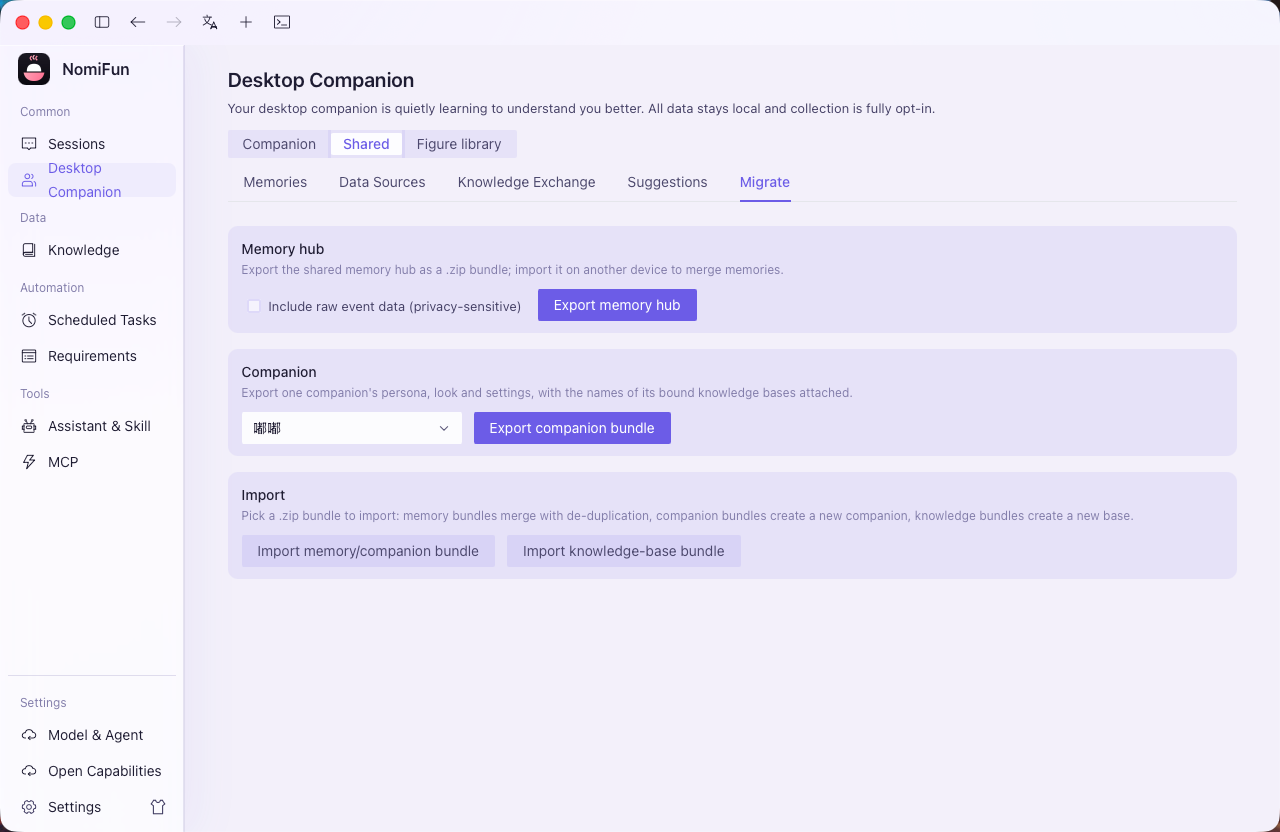
-
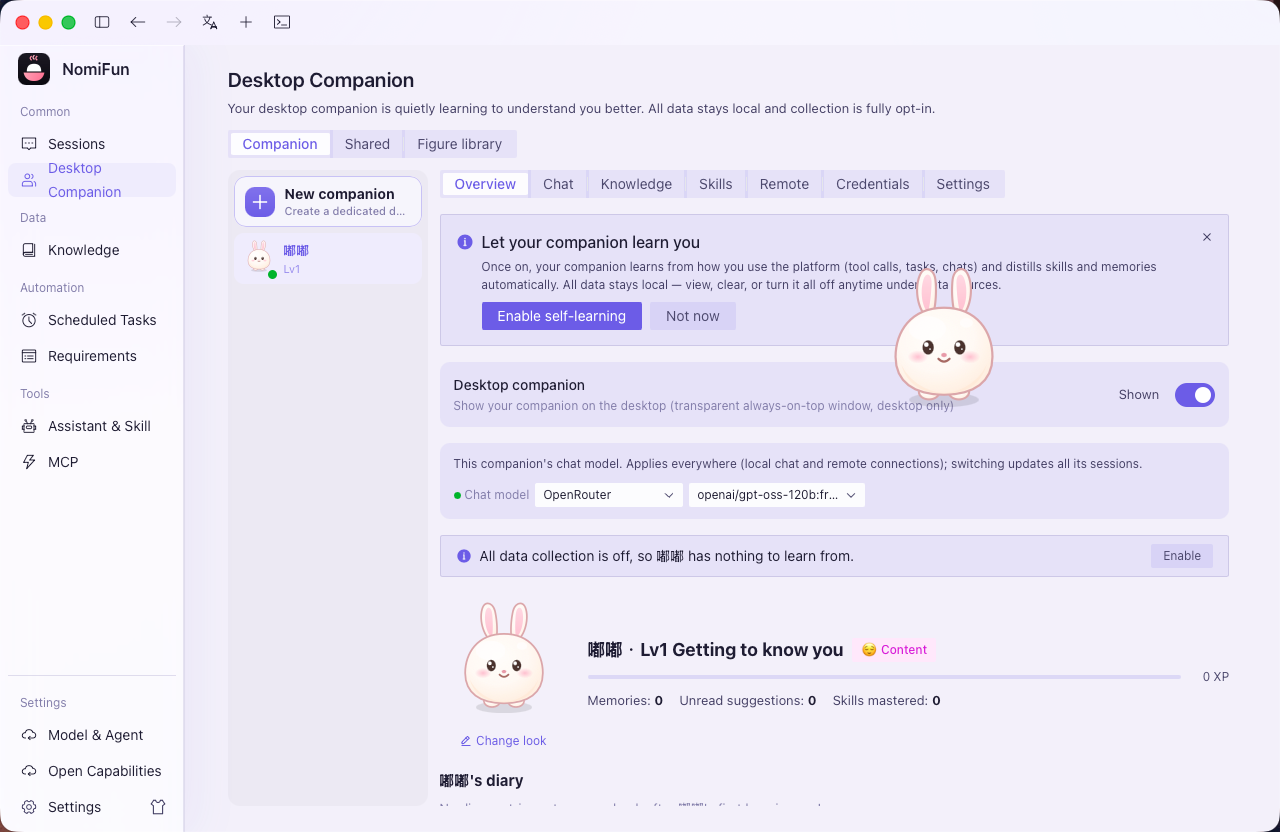
Enable the desktop pet. Flip the desktop-pet toggle and the companion gets a transparent, always-on-top, draggable window that keeps you company.
Notes and boundaries
- Memory has scopes; skills stay isolated. Memories can be shared or private to one companion. Shared memories are family-wide; private memories are visible only to the owning companion. Skill libraries are still grown per companion.
- The evolution engine sees sequences, not arguments. Skill mining is based only on the sequence of tool calls and records no argument values, so the skills it distills are safe to review and share.
- Keep desktop pets to ≤ 5 on screen. Each pet is its own WebView; too many hurts performance. The UI warns you but doesn’t hard-cap.
- Remote channels bind per companion. Each IM platform can bind one companion to handle remote messages, falling back to the default companion when unbound. Binding and rebinding are covered in Channels.
Privacy boundaries
- Raw collected events are not exported by default. The raw
eventsdata contains your work content verbatim and stays out of migration packs unless you explicitly check “include raw event data.” - Chat history does not travel with the companion pack. A companion pack carries only persona and settings; companion threads stay on the original machine.
- Legacy auto-migration. Upgrading from the single-pet version automatically migrates to “shared memory hub + first companion” on first launch — no manual steps.
FAQ
- Will deleting all companions lose my memory? No. The shared memory hub exists independently of companions; you can delete down to zero and collection/learning keep running.
- A companion’s model isn’t active after migration? Model config travels with the pack, but if the new machine hasn’t configured the matching provider it shows as unconfigured — just re-select it in Settings.
Related
- Channels — channel master-agent mode and per-platform companion binding.
- Knowledge base — knowledge-base creation, URL snapshots, and session mounting.
Full docs → GitHub