
Scheduled tasks
Scheduled tasks let you trigger a companion on a clock (cron) to do something: a daily reminder, a weekly health check, an hourly news roundup. Every trigger drives the agent you pick, runs the prompt you wrote, and records each run into a history.
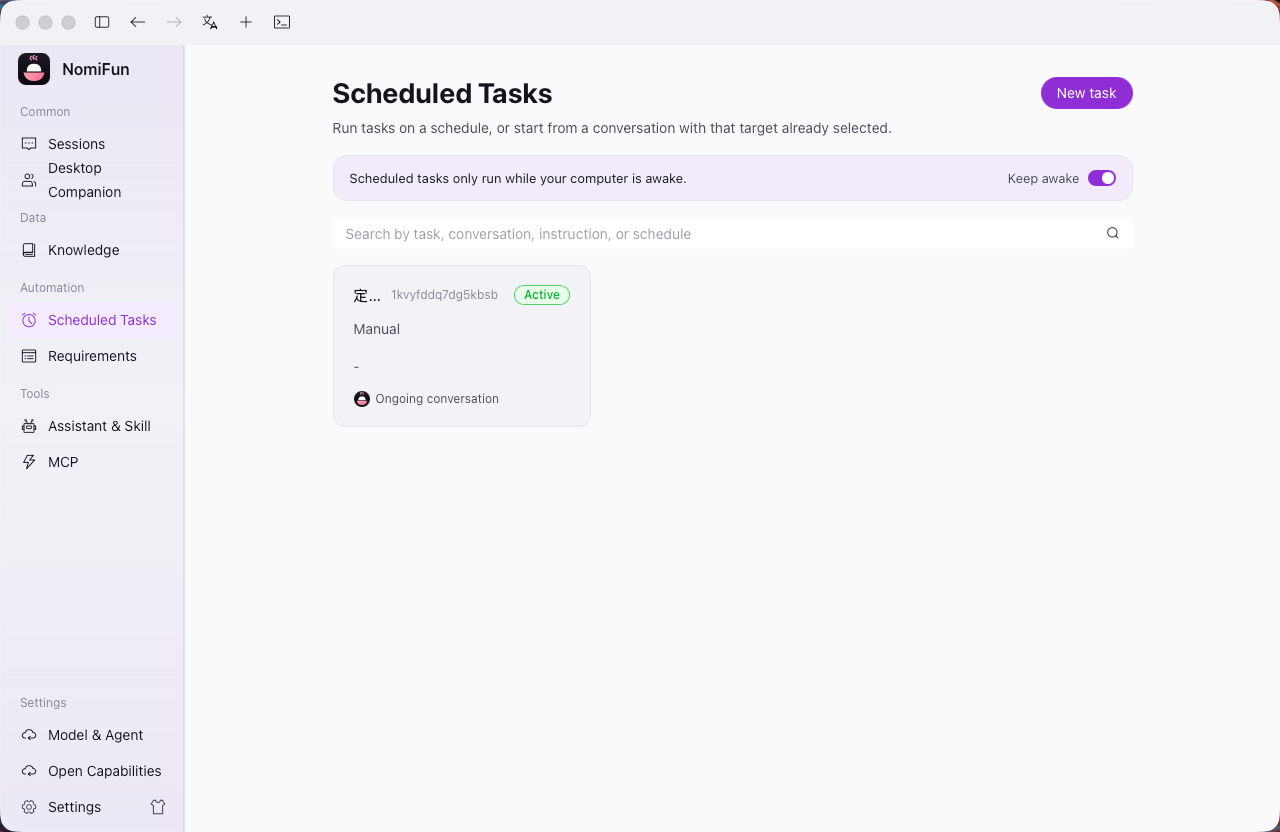
Open Scheduled tasks from the sidebar (route /scheduled). With no jobs yet you see the empty state, and a keep-awake banner at the top — a job only fires while the host process is running.
Steps
-
Create a task. On
/scheduled, click New task. The dialog has four parts: frequency, agent, execution mode, and prompt + name.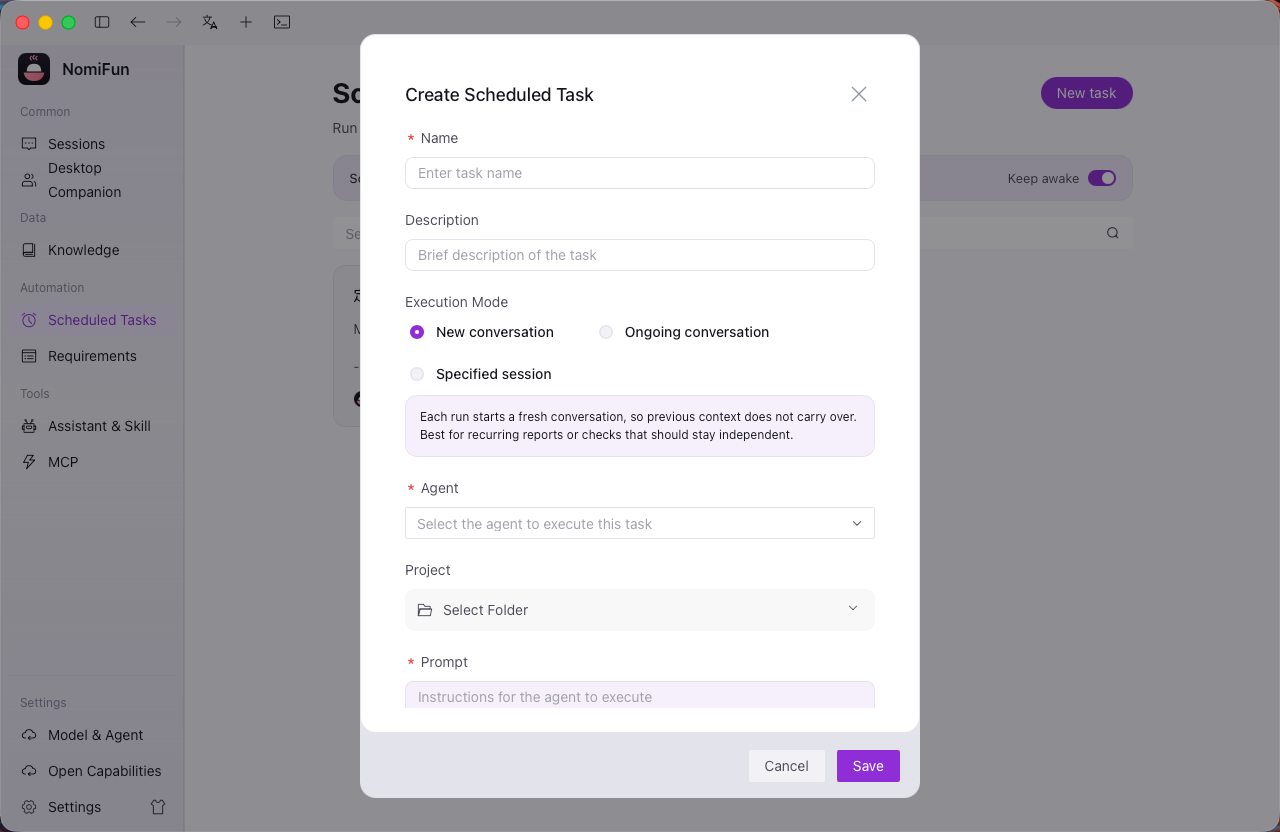
-
Set the frequency (cron). Pick a preset —
Manual(no auto-schedule, fired only by Run now),Hourly,Daily,Weekdays(Mon–Fri),Weekly, orCustomto type a cron expression directly. Presets render an editable expression and the builder validates as you type. Both 5-field (min hour dom mon dow) and 6-field (with a seconds prefix) forms are accepted. The task’s timezone is set at creation (defaulting to your browser’s), so0 9 * * MONmeans 09:00 in that timezone, not UTC. -
Choose an agent or preset. Use builtin Nomi (no extra install, best for a first run), a detected CLI agent (
claude/codex/gemini), or a reusable preset. Newer builds also let you create an unbound scheduled task first and complete its execution setup later. Advanced options can override the workspace and model. -
Pick an execution mode.
new_conversationopens a fresh session on each trigger, good for independent outputs;existing(a specified conversation) sends the prompt as a new message into the same thread, good for “remind me” / “summarize today” tasks where continuity matters. -
Write the prompt and name it. Write the prompt as a self-contained instruction: the agent never sees your original intent, only this text, so tell it exactly what to produce — e.g. “Search for this week’s latest AI news and produce a concise bullet-point summary.” Name is just the label in the list.
-
View and manage tasks. The list at
/scheduledshows every task, its next trigger, and an enable toggle. -
Act from the detail page. Open
/scheduled/:job_idto Run now (fire immediately, ignoring the schedule), Pause / Resume, Edit, or Delete. The detail page also shows the schedule, the run history, and the conversations this task created.
Notes & boundaries
- A task only fires while the host is running. The list page has a keep the system awake toggle that asks the OS to inhibit sleep (macOS
caffeinate, WindowsSetThreadExecutionState,systemd-inhibiton Linux where available), so closing the laptop lid doesn’t silently skip a trigger. - Missed triggers are logged, not silently lost. If a trigger is missed because the system slept or the app wasn’t running, the next startup / resume records a
missedrun, posts a system message into the affected conversation, and re-arms the timer for the next normal trigger. - Run history carries a status. Each trigger is recorded as
ok/error/skipped/missed, with a link to the resulting conversation where applicable. - A busy guard prevents overlap. In
existingmode, if the previous run is still going when the next trigger arrives, the new run is skipped (recorded asskipped). Switch tonew_conversationfor long-running work so each trigger gets its own thread. - You can attach a per-task skill. Author a
SKILL.mdon the detail page and it is injected into the agent’s session on every trigger — to lock in a persona, tool preferences, or workspace conventions. Companion skills are isolated per companion, while memory supports shared and per-companion private scopes — the two are independent. Deleting the task removes its skill directory too.
FAQ
- Does Run now conflict with the normal schedule? No. Run now fires one trigger immediately, ignoring the schedule; the busy guard still applies.
- My cron expression was rejected. Both 5-field and 6-field forms are valid; validate locally with the dialog’s builder or crontab.guru.
- The task ran but the agent did the wrong thing. Re-read the prompt assuming the agent has no other context — it must spell out exactly what to produce. Then consider attaching a skill to pin the behavior.
Related
- Unattended automation · AutoWork — use it when you want work done “as soon as possible” rather than on a clock.
- Session workspace — where the conversations a scheduled task creates continue.
- In-app terminal — when you need a live shell instead.
Full docs → GitHub